Manage users for your billing account
Progressive rollout
The features described on this page are rolled out progressively to Usercentrics users. This means your UI may differ until your account is migrated to the new interface.
Under Account & Billing > Account Users, you can define who has access to your account’s billing and payments information. There are the following levels of billing account access:
-
Account owner: This role is associated with the account when the account is created. This role can’t be removed or changed by any account user. The account owner can only be changed via a support ticket submitted by the current account owner. The account owner can manage billing account users, upgrade or cancel subscriptions, view billing info.
-
Admin: This role can manage users for the billing account, upgrade or cancel subscriptions, and view billing info.
-
Reader: This role has a limited read-only view to the billing account, being able to see invoices but not applying any changes.
Admin and Reader accounts do not grant access to the product itself
The Admin and Reader billing account levels don't imply that the users have access to technical configurations of the products. That access is managed under each product separately.
Add an account user
Who can perform this action: Account owner, Admin
To add a billing account user, follow these steps:
-
In the top-right corner, select your user account (your initials), and select Account & Billing.
-
In the Account Users tab, select Invite users.
-
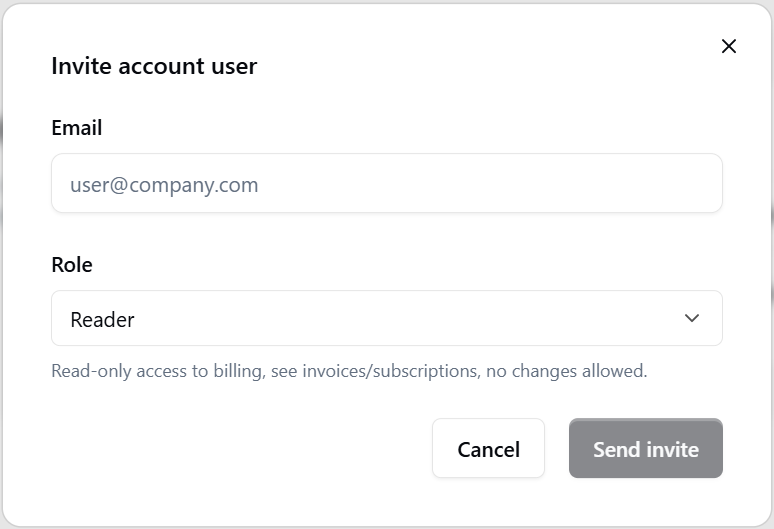
Add the new user’s email address.
-
Select the new user’s role:
-
Admin: Manage users on billing level, upgrade subscription, view billing info.
-
Reader: Read-only access to billing, see invoices/subscriptions, no changes allowed.
-
-
Click Send invite.
As a result, the user will receive an invitation email that contains a sign-up link. When signing up, the user defines their credentials.
Change a billing account user’s permissions
Who can perform this action: Account owner, Admin
To change permissions of a billing account user, follow these steps:
-
In the top-right corner, select your user account (your initials), and select Account & Billing.
-
In the Account Users tab, click the … button next to the user you want to change.
-
Select Change permission.
-
Select the user’s new role and click Change.
Remove a billing account user
Who can perform this action: Account owner, Admin
To remove a billing account user, follow these steps:
-
In the top-right corner, select your user account (your initials), and select Account & Billing.
-
In the Account Users tab, click the … button next to the user you want to remove.
-
Select Remove access.
-
Use the Remove access button to confirm the removal.
As a result, this user will no longer be able to access this billing account or perform actions within it. You can invite them again at any time.