Manage your payment methods
Progressive rollout
The features described on this page are rolled out progressively to Usercentrics users. This means your UI may differ until your account is migrated to the new interface.
The following sections describe how payments work in Usercentrics and how to perform the most common tasks regarding payment methods.
How do payment methods work?
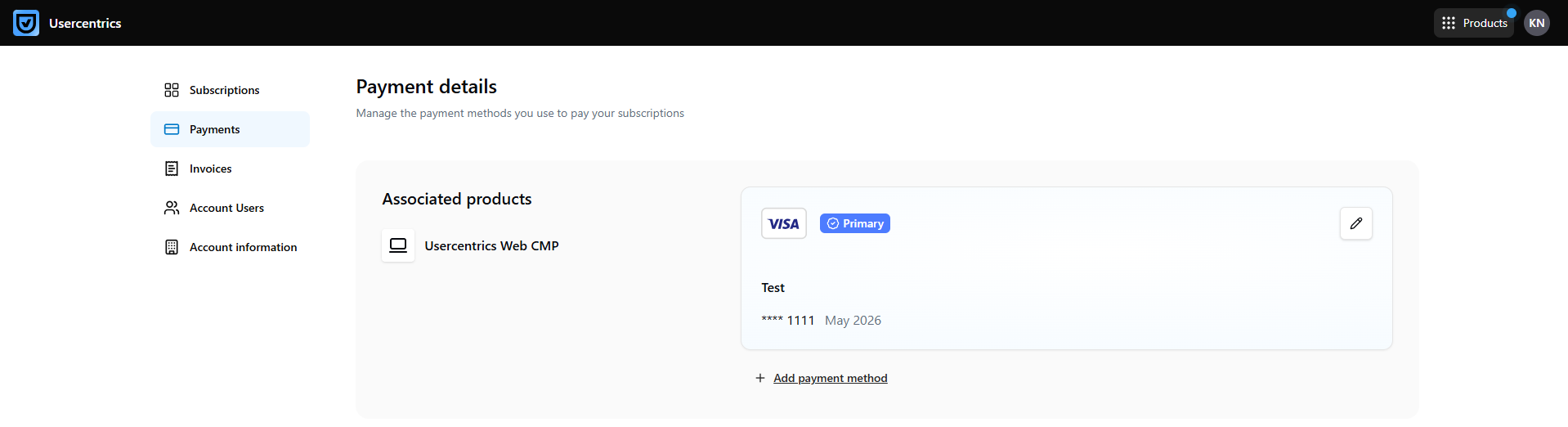
At your first purchase, a payment method is automatically created for you using the payment details provided. This payment method serves as your primary payment method, meaning that Usercentrics attempts the payment using that payment method first.
If you have several payment methods for a product, Usercentrics tries to charge the primary payment method. If that fails, it tries to charge the backup payment methods in the order they appear in the product's section under Account & Billing > Payments.
View the list of payment methods
Who can perform this action: Account owner, Admin
To see the list of payment methods associated with a product, select your user account (your initials) in the top-right corner, and select Account & Billing. The payment methods are listed on the Payments tab.
Add a payment method
Who can perform this action: Account owner, Admin
To add a payment method for a Usercentrics product, follow these steps:
-
In the top-right corner, select your user account (your initials), and select Account & Billing.
-
In the Payments tab, check if the product already has a primary payment method. You can add a backup payment method only if there is a primary payment method associated with the product. This requires a paid subscription for the product.
-
Under the primary payment method of the product, click Add payment method.
-
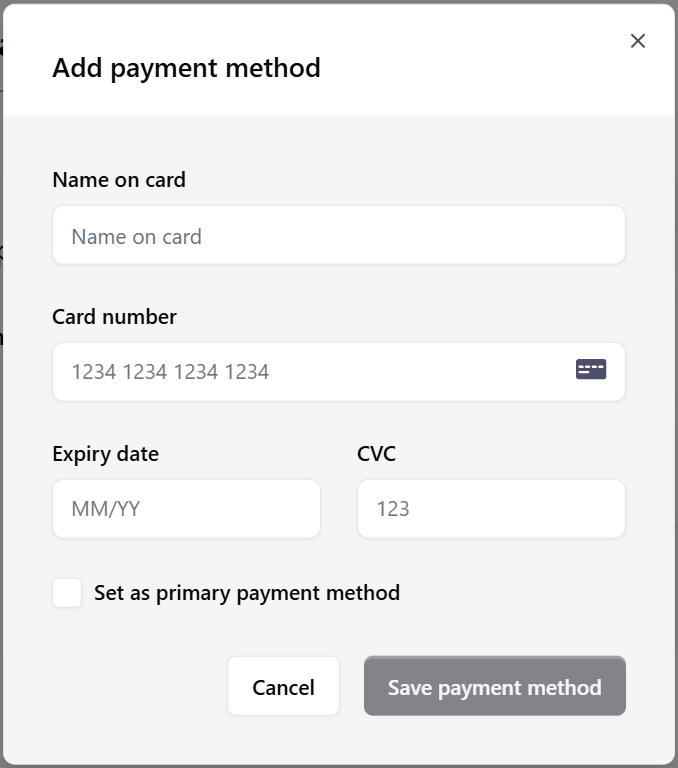
Fill in the card details.
-
Optionally, you can set the new payment method as primary. To do so, select the Set as primary payment method checkbox.
-
Click Save payment method.
-
The payment system verifies your payment method, meaning it tries to make a zero-value authorization transaction. You might need to authorize that payment, depending on your bank’s rules.
Remove a payment method
Who can perform this action: Account owner, Admin
You can remove only non-primary payment methods associated with a product. To do so, follow these steps:
-
In the top-right corner, select your user account (your initials), and select Account & Billing.
-
In the Payments tab, go to the product's section.
-
Click the … button on a non-primary payment method.
-
Select the Delete option.
-
Confirm the deletion by clicking Delete.