Manage your subscriptions
Progressive rollout
The features described on this page are rolled out progressively to Usercentrics users. This means your UI may differ until your account is migrated to the new interface.
Limited account management for corporate users
Some corporate account management options may be limited. Reach out to your Customer Success Manager if you have any questions about your subscription.
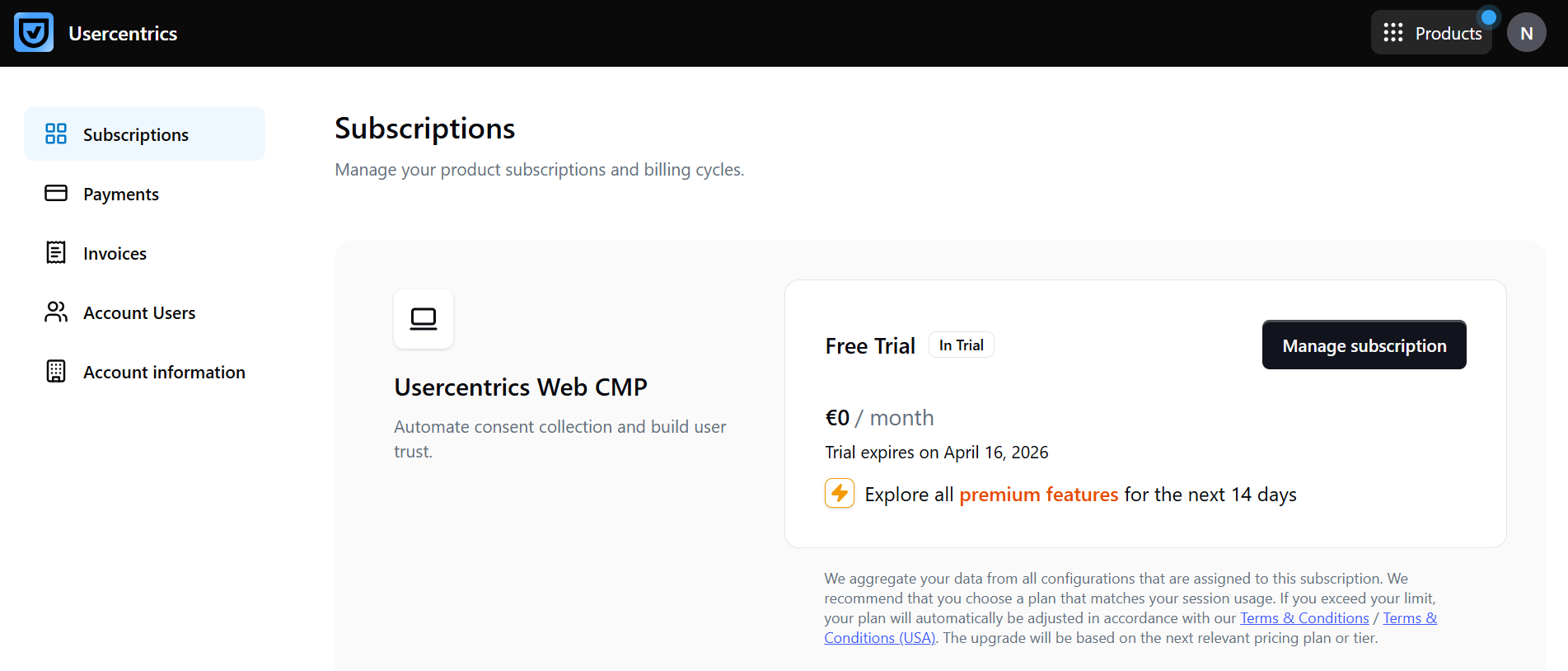
Under Account & Billing > Subscriptions, you can:
-
see the list of product subscriptions that belong to this account,
-
view your in-trial, active, canceled and expired plans,
-
check next payment date,
-
check the subscription amount,
-
check the overall usage for specific products,
-
change your subscription.
The following sections explain the most common account management tasks in more detail.
View your current and previous subscriptions
Who can perform this action: Account owner, Admin, or Reader
To see for which products you have a subscription and which plans were used for those products before, follow these steps:
-
In the top-right corner, select your user account (your initials), and select Account & Billing.
-
In the Subscriptions tab, scroll down to see the full list of products.
-
All subscriptions tied are displayed here. This includes in-trial, active, canceled and expired subscriptions.
-
The current plan and next payment date are displayed for each product.
-
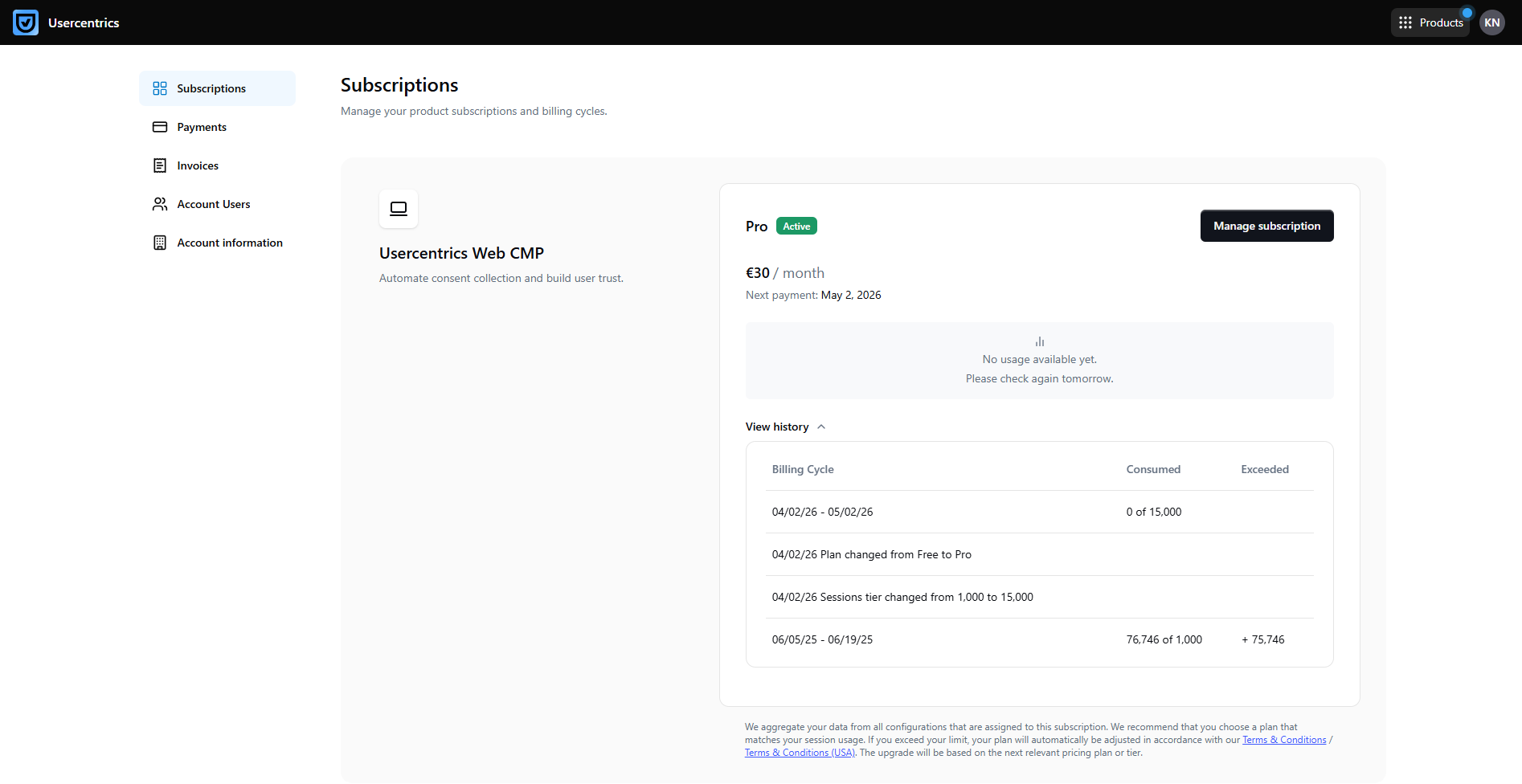
Specific products, such as Usercentrics Web CMP, also show the usage of the product. To see more information on this, select the View history dropdown on the product area.
-
Upgrade your subscription
Who can perform this action: Account owner or Admin
To upgrade your subscription, follow these steps:
-
In the top-right corner, select your user account (your initials), and select Account & Billing.
-
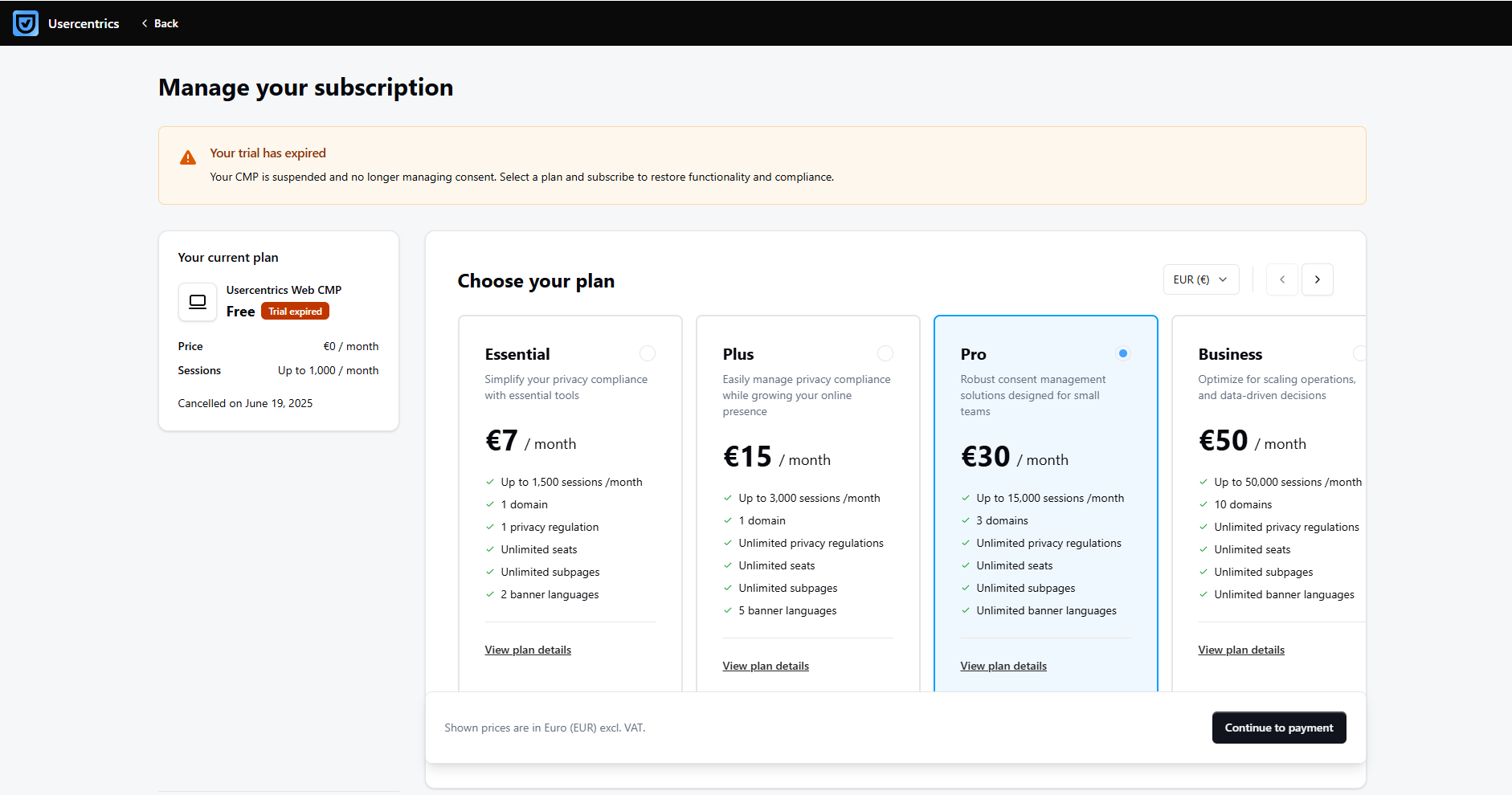
In the Subscriptions tab, select Manage subscription of the product you would like to upgrade.
-
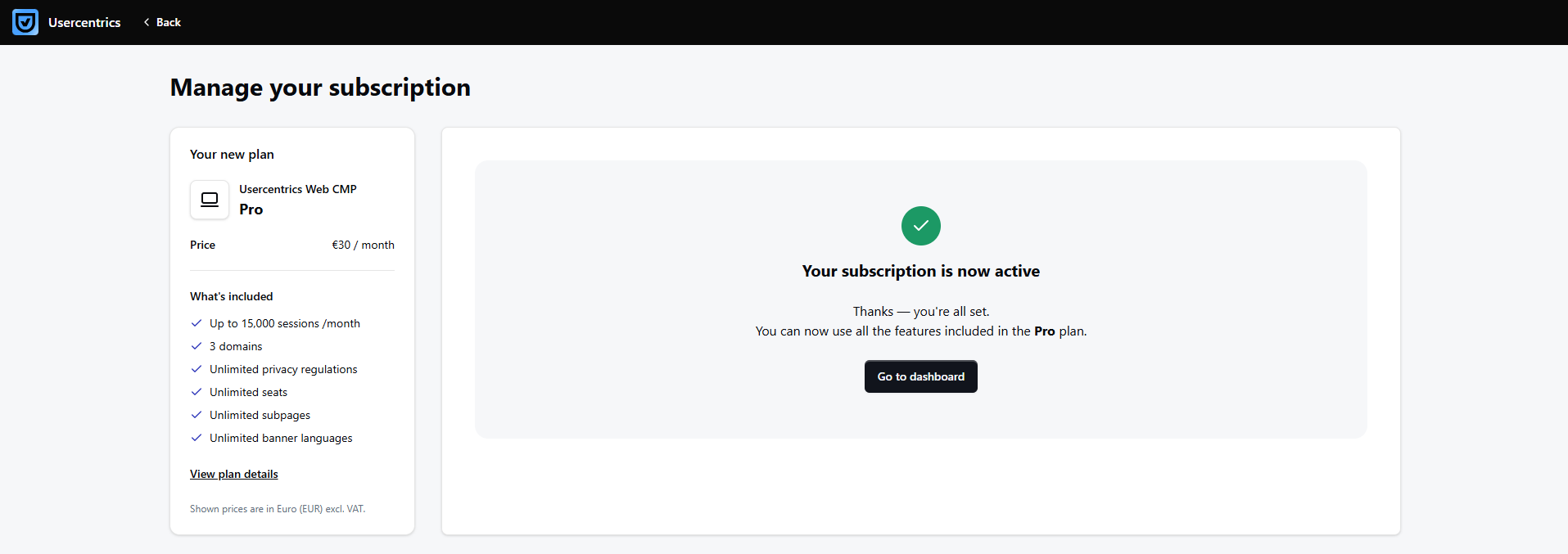
Select the new plan and click Continue to payment.
-
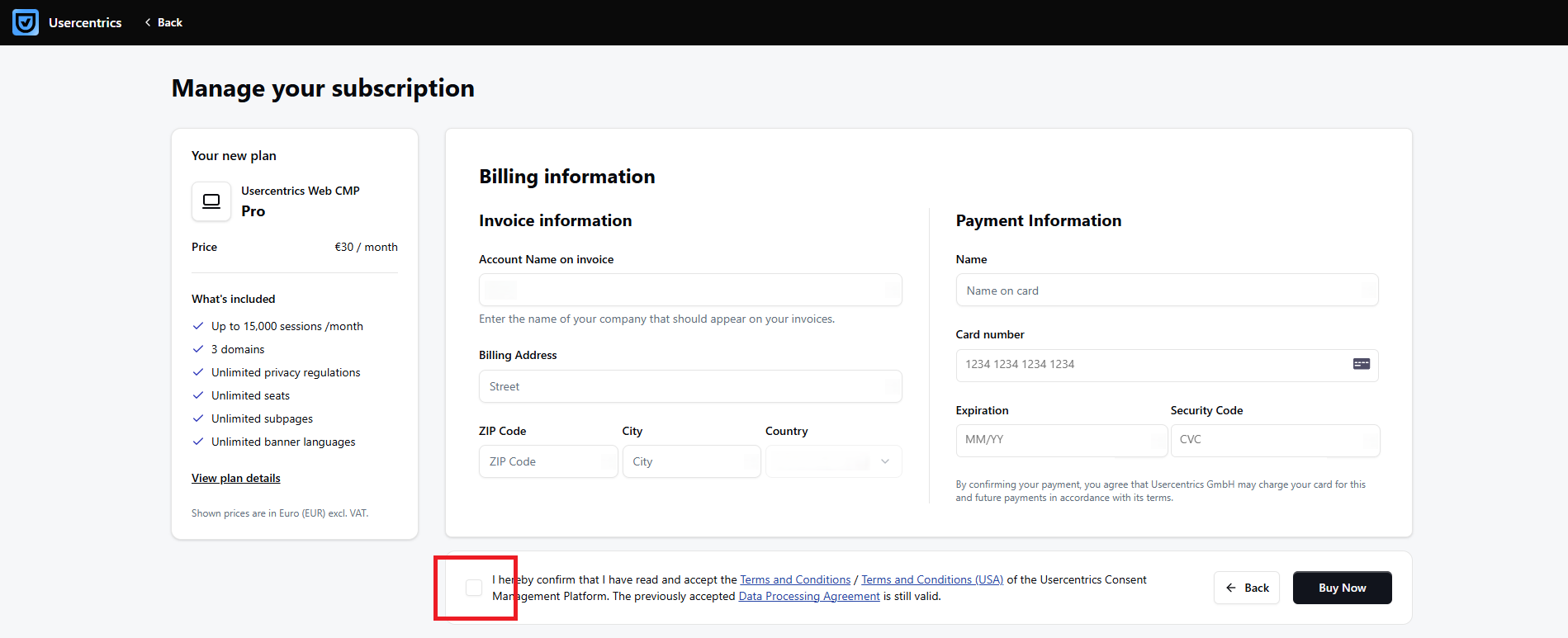
If you are on a free or trial plan, fill in the Billing information.
-
Use the checkbox to confirm that you have read and accept the Terms and Conditions, and that the previously accepted Data Processing Agreement remains valid.
-
Click Buy Now.
-
If you have authorization and OTP enabled with your credit card, authorize the payment and confirm the subscription success in Usercentrics when finished.
Usercentrics is on a default pre-paid billing term, which means that the payment gets charged immediately.
Cancel your subscription
Who can perform this action: Account owner or Admin
To cancel your subscription, follow these steps:
-
In the top-right corner, select your user account (your initials), and select Account & Billing.
-
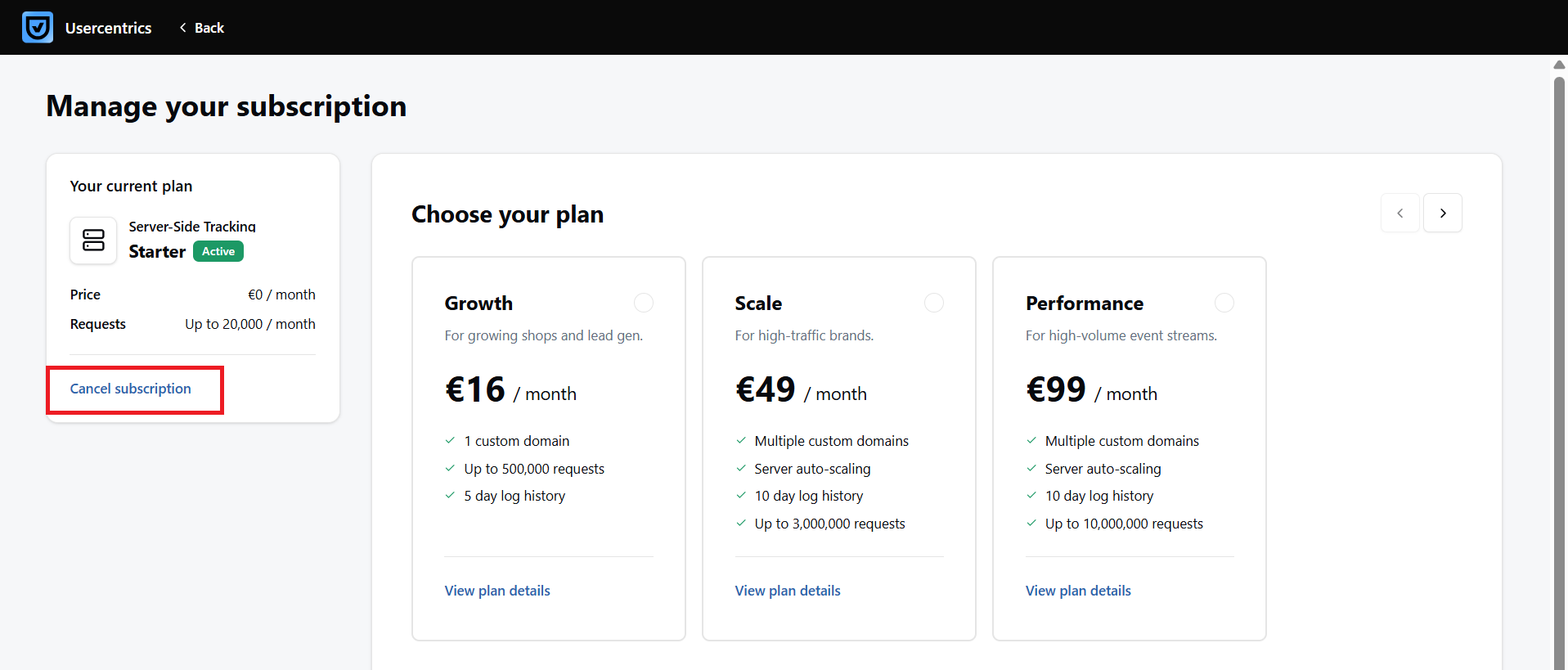
In the Subscriptions tab, in the area of the respective product, select Manage subscription.
-
In the top-left card, under your current subscription select Cancel subscription.
-
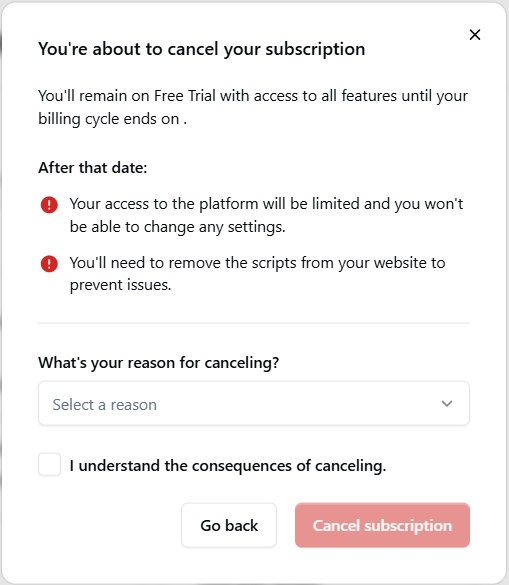
Select the cancellation reason and mark the checkbox to acknowledge the impact of canceling. Then select Cancel subscription.
Switch to a free subscription
Who can perform this action: Account owner or Admin
Which product does this apply to: only Usercentrics Web CMP
Important: You can move to the Free plan only when your trial is expired and you haven't upgraded to a paid plan yet.
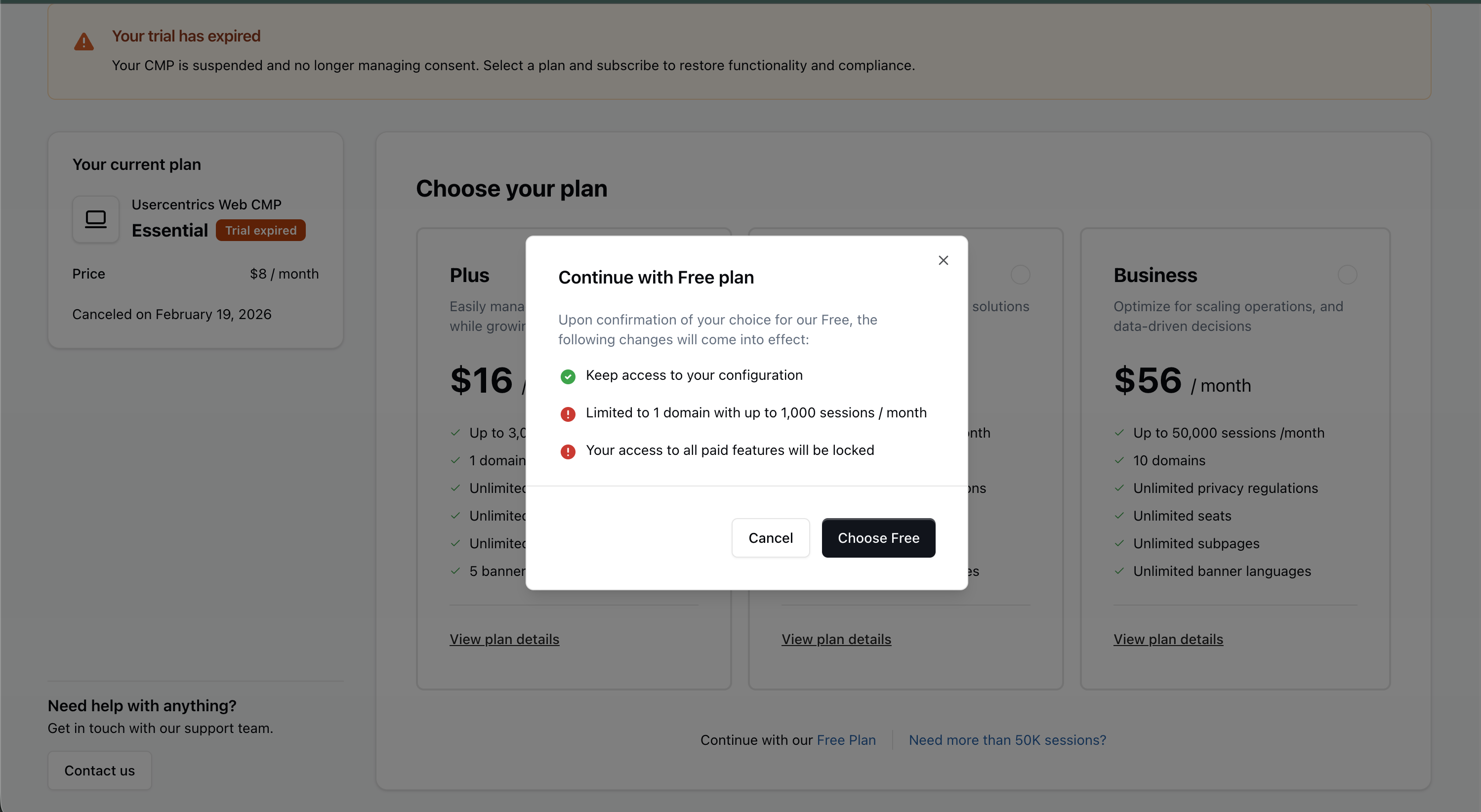
Important: If you move to the Free plan, you lose access to paid features that were available during the trial period. Check the pricing page for details on which features are paid.
To switch to the Free plan after the trial period, follow these steps:
-
In the top-right corner, select your user account (your initials), and select Account & Billing.
-
In the Subscriptions tab, select Manage subscription.
-
Under the cards of the paid plans, you see a line saying Continue with our Free Plan. Click on the link Free Plan.
-
Read through the information presented about what the Free plan includes, and click Choose Free.
FAQ
What happens if my trial subscription expires?
If your trial subscription expires, your product is suspended and no longer manages consent or other relevant data. To solve this, subscribe to a plan. In the top-right corner, select your user account (your initials), and select Account & Billing. In the Subscription tab, click Manage subscription to subscribe to a plan.
How is a session defined by Usercentrics?
In Usercentrics CMP, a session starts when a user visits your website and lasts 30 minutes. Here's how sessions are counted:
-
Each session lasts 30 minutes and is measured using a tracking pixel stored in the browser cache.
-
The tracking pixel is set per settings ID. When a user returns, the browser retrieves the previously stored pixel from the cache.
-
After 30 minutes, the cached tracking pixel and the session expire.
-
If a user revisits the website after 30 minutes, a new session starts.
-
If a user stays on the website for longer than 30 minutes without triggering a new page load, no new session is counted.
-
Single-page applications: If the session expires after 30 minutes and a new page load occurs, a new session is counted. If no new page load is triggered, no new session is counted.
-
With Cross-Domain Consent Sharing: Sessions still last 30 minutes and carry over across domains.
-
Without Cross-Domain Consent Sharing: Each visit to a new domain or subdomain that uses the same settings ID counts as a separate session. Sessions are not shared across domains by default.
When do I get upgraded automatically?
In Usercentrics CMP, if you exceed your plan's session limit for two consecutive months, your plan will automatically be adjusted in accordance with our Terms & Conditions / Terms & Conditions (USA). The upgrade will be based on the next relevant pricing plan or tier.
Where do I find my invoices?
To see your invoices, select your user account (your initials), and select Account & Billing. Then navigate to the Invoices tab.
How can I add other billing account users?
To add other billing account users, select your user account (your initials), and select Account & Billing. Then navigate to the Account users tab.