Implementing Google Tag Gateway with Usercentrics SST
This guide walks you through the steps needed to implement Google Tag Gateway.
Overview
By default, Google tags — including GA4 and Google Ads — load from Google-owned domains like googletagmanager.com. Ad blockers and privacy-focused browsers such as Safari, Brave, and Firefox routinely block these domains, creating measurement gaps and limiting how long cookies can last.
Google Tag Gateway (GTG) solves this by routing your Google tag scripts through your own domain. Instead of loading from googletagmanager.com, your tags load from your subdomain — for example, metrics.yourdomain.com — which browsers treat as first-party.
With GTG enabled through Usercentrics, you get:
- More complete measurement — tag scripts are no longer blocked by ad blockers or browser tracking protections
- Reliable cookie tracking — tags load in a first-party context, and when combined with your sGTM container, cookies are set server-side via HTTP headers
- Consent-aware delivery — GTG works natively with your Usercentrics consent banner, so tags only fire when the user has granted the appropriate consent
How GTG and sGTM work together
GTG handles script delivery — it ensures gtm.js and gtag.js load from your subdomain rather than Google's servers. Your sGTM container then handles data collection, processing measurement requests server-to-server and setting server-side cookies. For a full explanation of how the two layers interact, see What is Google Tag Gateway?.
Geo headers and region-specific behavior
When requests reach your sGTM container via GTG, the container needs to know the visitor's location to apply region-specific tag logic and Consent Mode correctly. Usercentrics automatically injects geo headers (X-Geo-Country, X-Geo-Region) into every request — so region detection works correctly even when the original IP is masked by our CDN. This is enabled automatically when you enable the smart platform.
Before you start
Before enabling Google Tag Gateway, make sure the following are in place:
- A Usercentrics SST plan
- A custom subdomain mapped to your sGTM container — for example,
metrics.yourdomain.com. If you haven't set this up yet, follow the getting started guide before continuing - An active Google Tag Manager account with a web container and a server container already configured
How to implement GTG with Usercentrics
This guide assumes you already have server-side tagging in place.
Step 1 — Configure the GTM Web Container client in sGTM
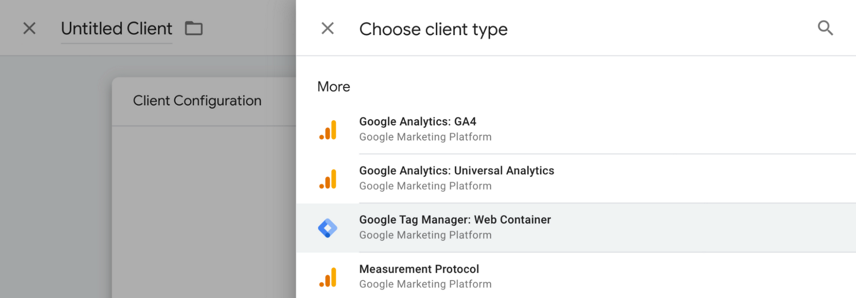
- Go to your server-side GTM container
- Click Clients in the left menu
- Click New
- Select Google Tag Manager: Web Container as the client type
In the client configuration:
- Container ID — enter the container ID of your GTM web container
- Automatically serve all dependent Google scripts — leave this enabled (default). This enables your tagging server to serve all scripts that GTM requires, without needing to allowlist them individually
- Enable region-specific settings — enable this option to allow tags to fire based on the visitor's location. This is required for Consent Mode to apply regional behavior correctly
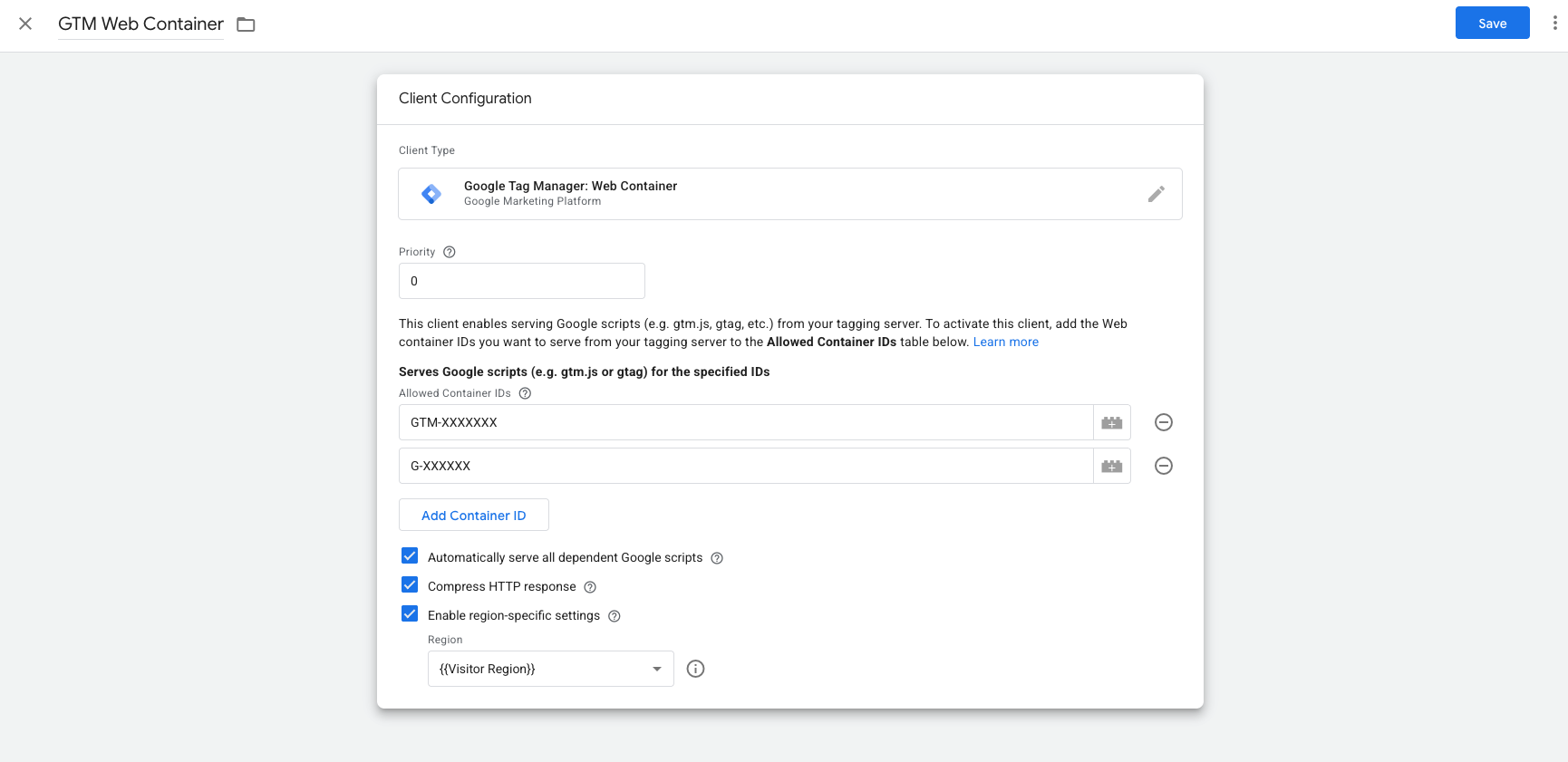
- Add your client-side GTM ID and your GA4 data stream
- Name the client and click Save
- Publish the workspace
Step 2 — Update the GTM snippet on your website
This is the step that activates GTG. You will replace the googletagmanager.com domain in your GTM snippet with your Usercentrics subdomain.
If you do not have access to your website's source code, share this documentation with the relevant team member.
Your current GTM snippet looks like this:
<!-- Google Tag Manager -->
<script>(function(w,d,s,l,i){w[l]=w[l]||[];w[l].push({'gtm.start':
new Date().getTime(),event:'gtm.js'});var f=d.getElementsByTagName(s)[0],
j=d.createElement(s),dl=l!='dataLayer'?'&l='+l:'';j.async=true;j.src=
'https://www.googletagmanager.com/gtm.js?id='+i+dl;f.parentNode.insertBefore(j,f);
})(window,document,'script','dataLayer','GTM-XXXXXXX');</script>
<!-- End Google Tag Manager -->
Replace it with the following, substituting metrics.yourdomain.com with your actual subdomain and GTM-XXXXXXX with your web container ID:
<!-- Google Tag Manager -->
<script>(function(w,d,s,l,i){w[l]=w[l]||[];w[l].push({'gtm.start':
new Date().getTime(),event:'gtm.js'});var f=d.getElementsByTagName(s)[0],
j=d.createElement(s),dl=l!='dataLayer'?'&l='+l:'';j.async=true;j.src=
'https://metrics.yourdomain.com/gtm.js?id='+i+dl;f.parentNode.insertBefore(j,f);
})(window,document,'script','dataLayer','GTM-XXXXXXX');</script>
<!-- End Google Tag Manager -->
Place this snippet in the <head> of your website. Once it is live, your tags will start loading from your own subdomain.
Step 3 — Verify your setup
The following instructions use Google Chrome. Steps may differ in other browsers.
- Open your website in a new browser tab
- Right-click anywhere on the page and select Inspect
- In the developer tools, open the Sources tab
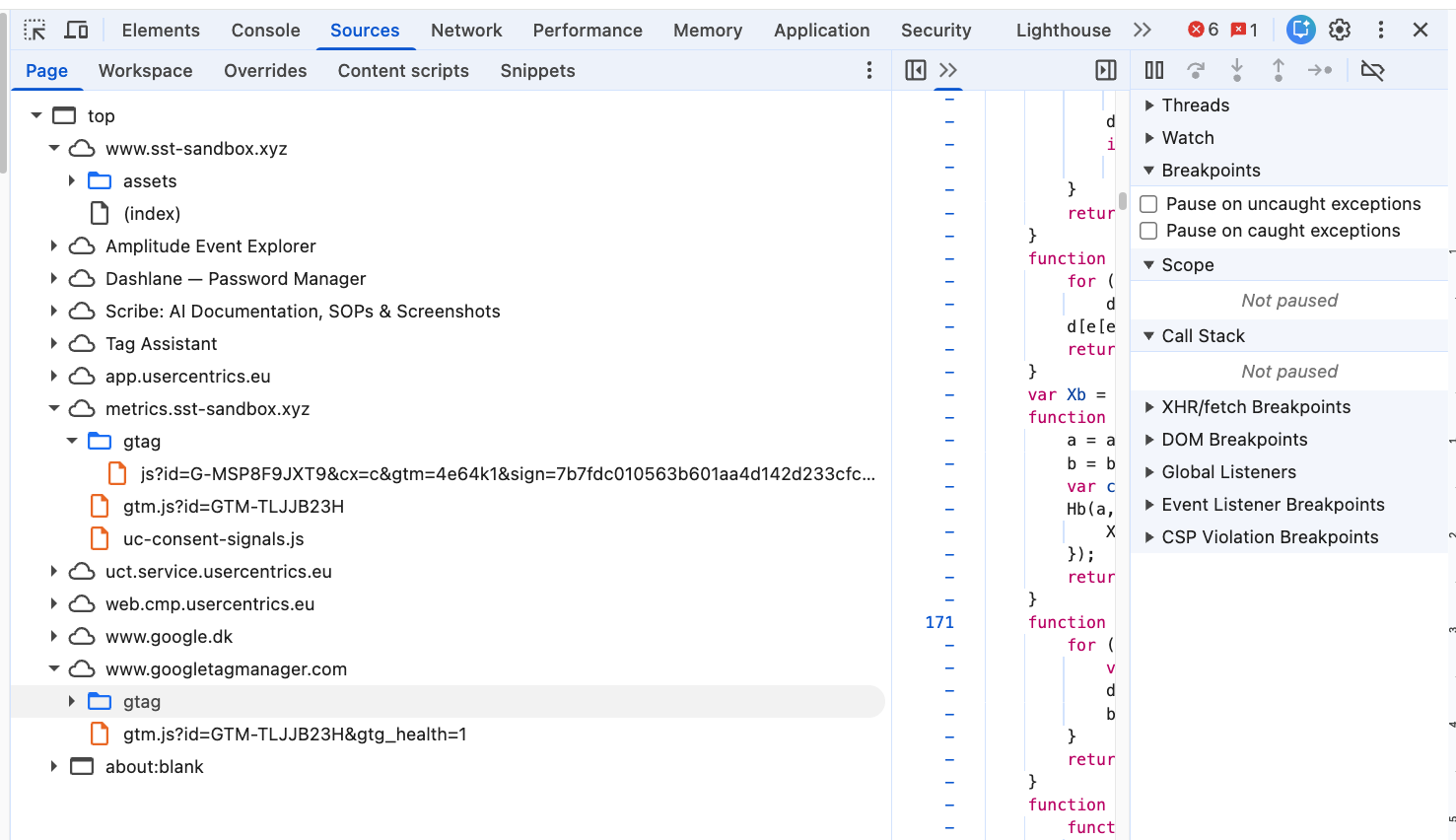
- Your setup is correct if
gtm.jsandgtagare loaded from your subdomain (e.g.metrics.yourdomain.com) - Your setup is not active if the Sources tab still shows
www.googletagmanager.comas the source forgtm.jsorgtag
Note
You will also see a request from www.googletagmanager.com with >g_health=1 in the URL. This is Google's health check — a background ping GTG uses to verify connectivity to Google's servers. It is expected and does not mean your tags are still loading from Google. Google is continuously updating their products, so this may look slightly different over time.
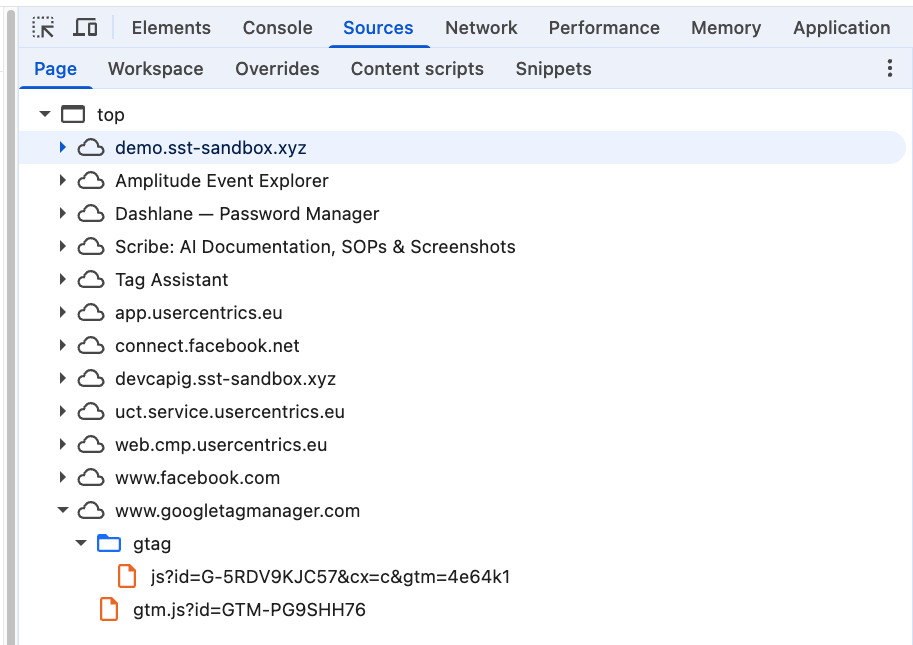
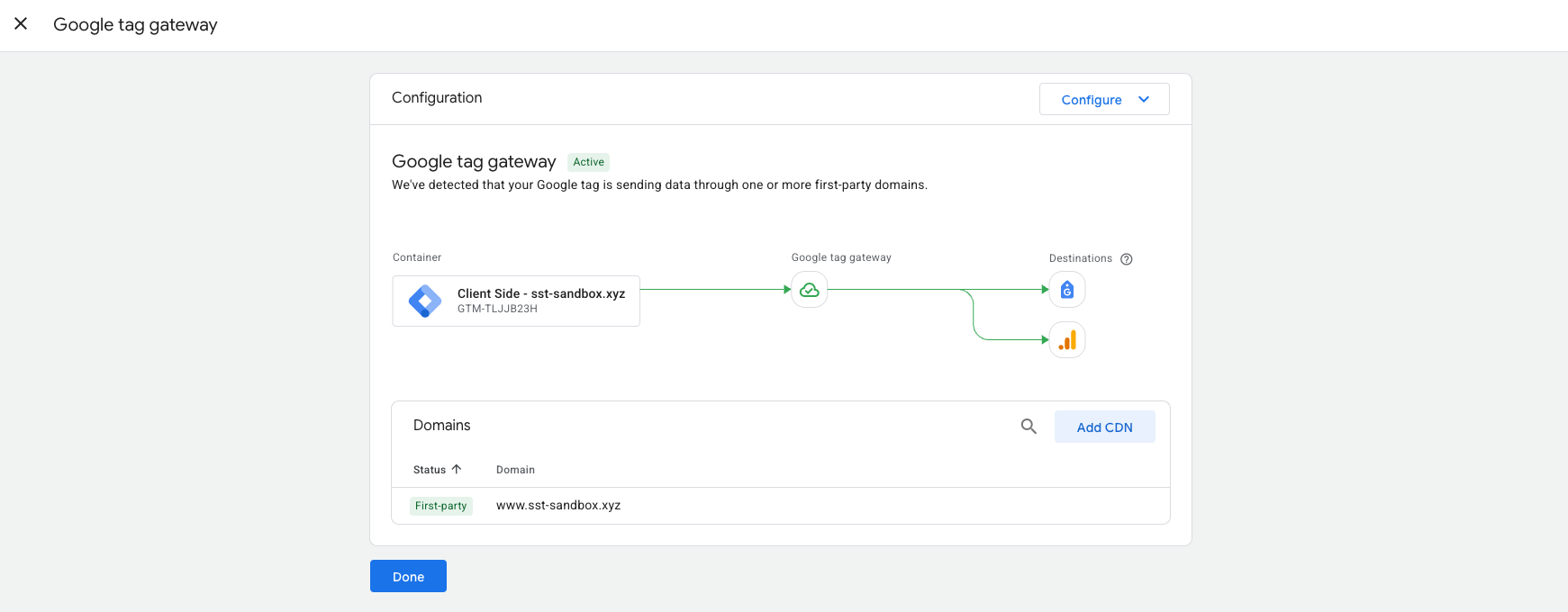
In your client-side Google Tag Manager container, go to Admin > Google Tag Gateway. Your domain should be listed with a First-party status:
Alternative ways of implementing GTG
Go to your client-side Google Tag Manager, open the admin section, and click on Google Tag Gateway.
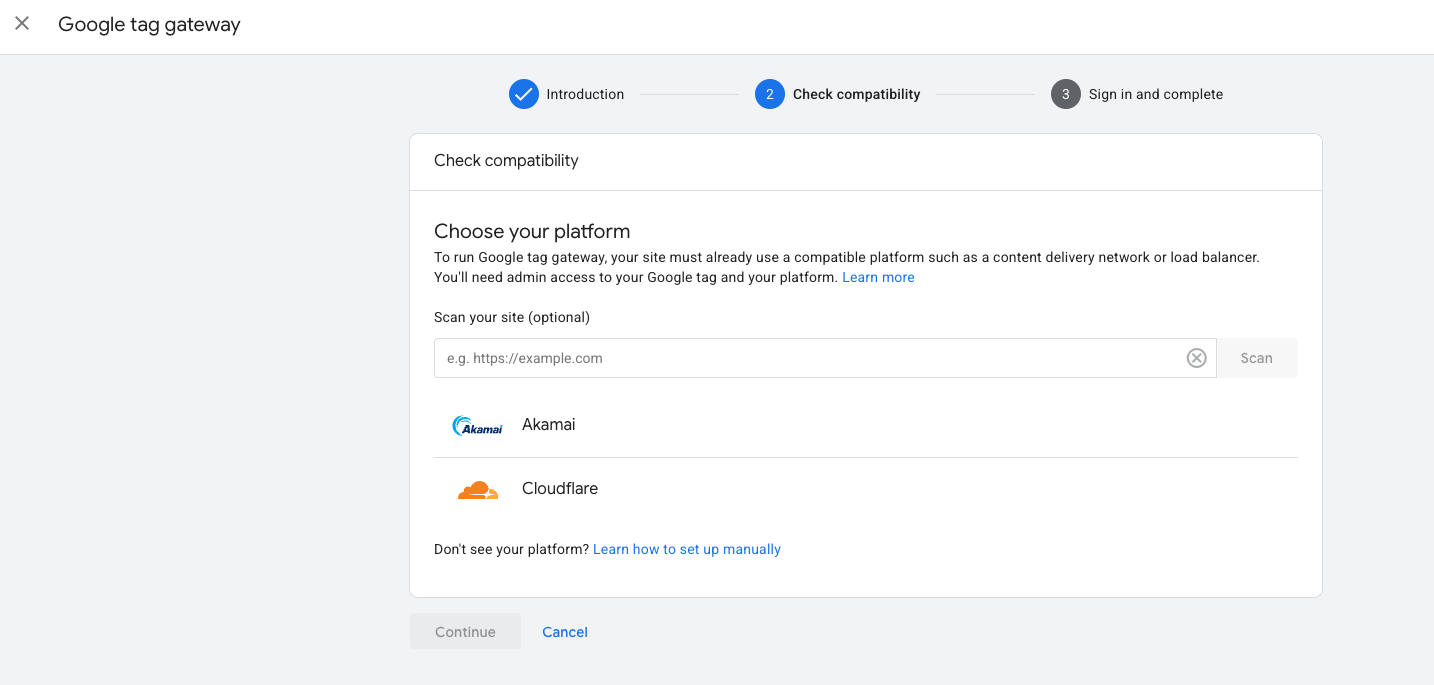
If you use Akamai as your content delivery network (CDN), you can set up Google tag gateway for advertisers in the Google tag by integrating with your Akamai account.
Alternatively, if you use Cloudflare as your content delivery network (CDN), you can set up Google tag gateway for advertisers in Google Tag Manager by integrating with your Cloudflare account.