Analytics Export Service
The Analytics Export Service enables the automated download of Interaction Analytics and Granular Analytics reports, including an A/B testing variant option for Interaction Analytics, via a download link. From a technical perspective, it's a REST API calling an export service. This makes it compatible with any BI (Business Intelligence) system.
Availability
The analytics data export is a premium add-on feature, available only to customers with Corporate or Premium subscriptions.
Prerequisites
To use this feature, you need the following:
- Corporate or Premium subscription
- API key for authentication
analyticsId, an identifier of the report that you generate
To obtain the API key and the analyticsId, open a support ticket or reach out to your customer success manager. In the request, provide the following information:
- Configurations (
settingsIdvalues) the export should be provided for. - Frequency of the reports: monthly, weekly, or daily.
- Aggregation types:
- Interaction Analytics:
{Aggregation} = interaction - Granular Analytics:
{Aggregation} = granular - Interaction + A/B testing Analytics:
{Aggregation} = interaction-abvariant
- Interaction Analytics:
After the analytics data export has been activated for you, you receive your analyticsId and authentication credentials. For more information about this process and subscriptions, read the knowledge base article about the raw data export request.
HTTP request
To export the analytics data, send an HTTP GET request with the following format: {serviceUrl}/download/v2/analytics/{analyticsId}/{filePrefix}
Parameters:
serviceUrl=https://data-export.service.usercentrics.euanalyticsId= An aggregator of differentsettingsIdvalues. Usercentrics Support provides the analytics ID upon request. For more information, read the knowledge base article about the raw data export request.filePrefix= Analytics file prefix, which defines the output file's format and content. Example:interaction-2026-01-01
Example request:
curl --location --request GET 'https://data-export.service.usercentrics.eu/download/v2/analytics/analyticsId/interaction-2026-01-01' \
--header 'X-API-Key: your_key'
To generate your HTTP request, you can use the Swagger documentation.
In response, you get a JSON file containing an array of download links, which are valid for 15 minutes. Example response:
{
    "downloadUrls": [
        "https://storage.googleapis.com/analytics-raw-data-aggregation/analyticsId/file-1?auth=token",
        "https://storage.googleapis.com/analytics-raw-data-aggregation/analyticsId/file-2?auth=token"
    ]
}
filePrefix
The filePrefix defines the output file's format and content. Usercentrics provides analytics for Interaction Analytics and Granular Analytics on a monthly, weekly, and daily basis. The file prefix varies for the different aggregation types and aggregation frequencies.
Aggregation type
The aggregation type defines which analytics you receive via the API. The following three options are available:
- Interaction Analytics:
{Aggregation} = interaction - Granular Analytics:
{Aggregation} = granular - Interaction + A/B testing Analytics:
{Aggregation} = interaction-abvariant
Frequency
The following table explains how to work with the different aggregation frequencies:
| Frequency | Start date and end date | Format | Example | Availability |
|---|---|---|---|---|
| Monthly analytics | Use the first date of the month as the start date and the last date of the month as the end date | {Aggregation}-YYYY-MM-DD-YYYY-MM-DD | interaction-2026-04-01-2026-04-30 | On the 1st of every month at around 8am UTC. |
| Weekly analytics | Use Monday as the start date and Sunday as the end date | {Aggregation}-YYYY-MM-DD-YYYY-MM-DD | granular-2026-04-06-2026-04-12 | On every Monday at around 8am UTC. |
| Daily analytics | Use the exact date on which you want the analytics | {Aggregation}-YYYY-MM-DD | interaction-2026-04-01 | The next day at around 8am UTC. |
Authentication
To authenticate, send the API key either via header or query parameter:
- HTTP header:
x-api-key: 'your_key' - Query parameter:
apiKey=your_key
Usercentrics Support provides your individual key upon request. To learn how to receive it, read the knowledge base article about the scheduled raw data export request.
What does the report look like?
Interaction Analytics raw data export
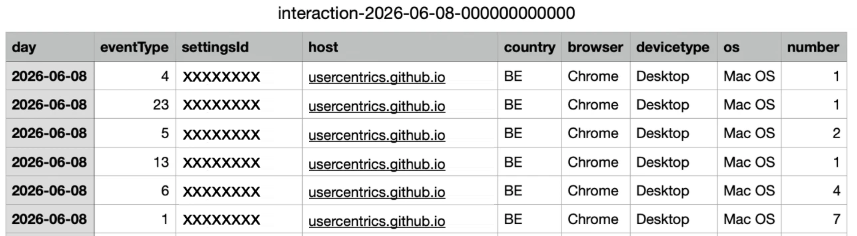
The following event types are available for Interaction Analytics:
| Value | Event type | Description |
|---|---|---|
1 | CMP_SHOWN | Triggered when the CMP is shown |
2 | ACCEPT_ALL | Triggered by clicking the Accept All button |
3 | DENY_ALL | Triggered by clicking the Deny All button |
4 | SAVE | Triggered by clicking the Save button |
12 | IMPRINT_LINK | Triggered by clicking the Imprint link |
13 | MORE_INFORMATION_LINK | Triggered by clicking the More Information button |
14 | PRIVACY_POLICY_LINK | Triggered by clicking the Privacy Policy link |
When you use the interaction-abvariant aggregation type, the file includes an additional abvariant column, which indicates the A/B test variant (for example, variant0 or variant1) that the entry belongs to.

Granular Analytics raw data export
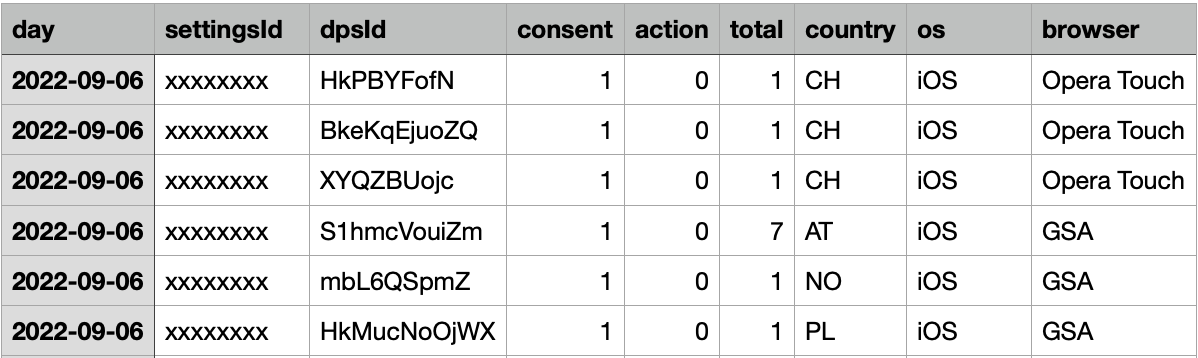
The consent column has two possible values:
| Value | Description |
|---|---|
0 | Opt-out |
1 | Opt-in |
The action column has the following values in the raw data:
| Value | Description |
|---|---|
0 | Accept All (onAcceptAllServices) |
1 | Deny All (onDenyAllServices) |
2 | Essential change: indicated a service as essential that wasn't before, or vice versa (onEssentialChange) |
3 | User is visiting the website for the first time (onInitialPageLoad) |
4 | A bot script is detected, a CCPA CMP is visited for the first time, or all services are accepted implicitly for non-EU users (onNonEURegion) |
5 | onSessionRestored) |
6 | TCF string change (onTcfStringChange) |
7 | Granular Accept or Granular Deny (onUpdateServices) |
8 | Mobile session restore (onMobileSessionRestore) |