Setting up age verification
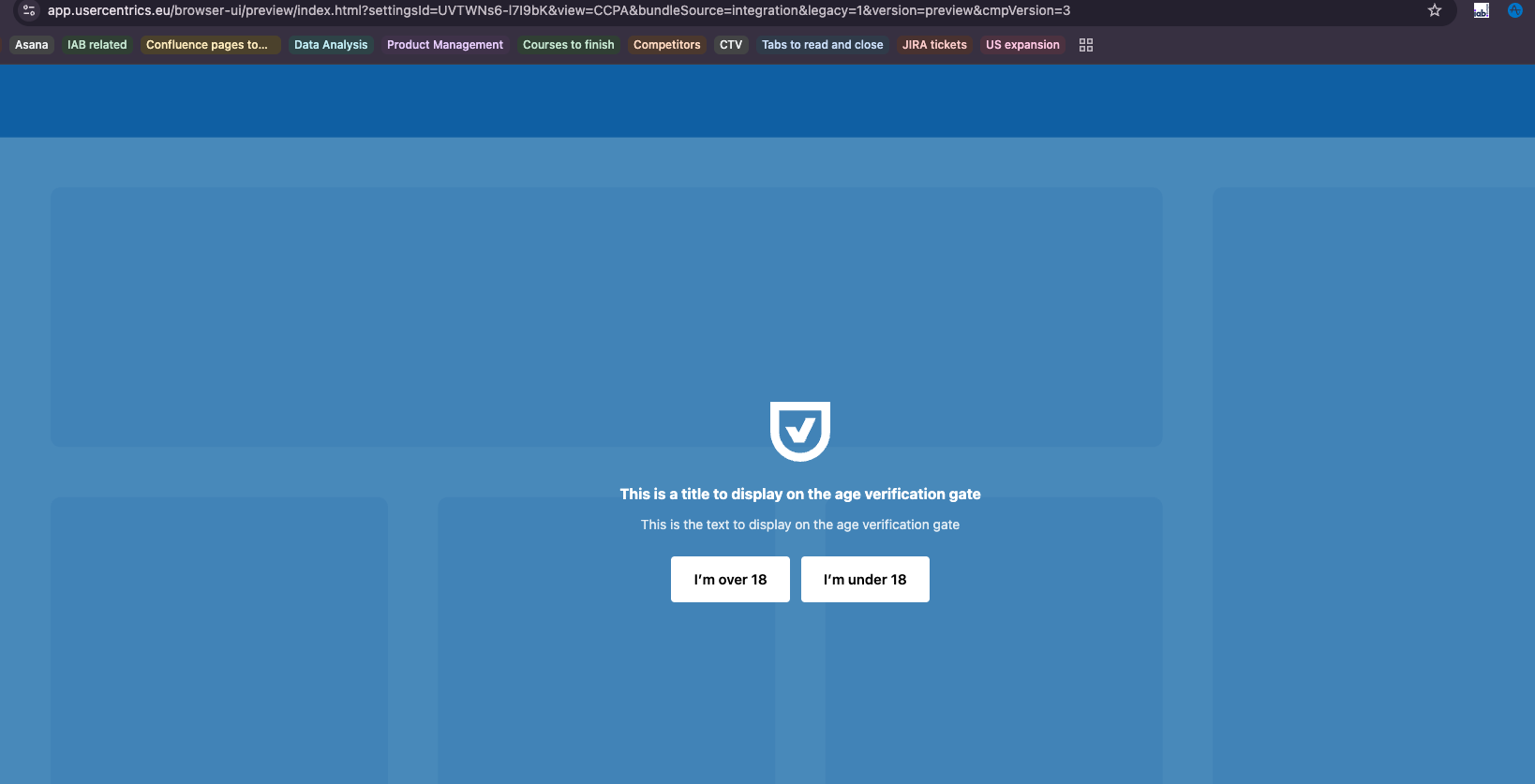
Usercentrics' age verification gate asks visitors for their age and adjusts your website's consent flow based on the visitor's age, so each visitor sees the version that fits their age group. This helps you protect younger visitors and follow child privacy laws such as the GDPR (Europe) and COPPA (United States).
This page explains how to set up age verification in Usercentrics, and how the age verification works after you set it up.
Set up age verification
To set up the age verification gate for Usercentrics, follow these steps:
-
Open the configuration you want to use with age verification:
-
Log in to the Usercentrics Account Interface.
-
Select the company for which you want to set up age verification.
-
In the Configurations tab, select the configuration you want to change.
-
-
Enable the age gate and rules:
-
Navigate to the Appearance tab.
-
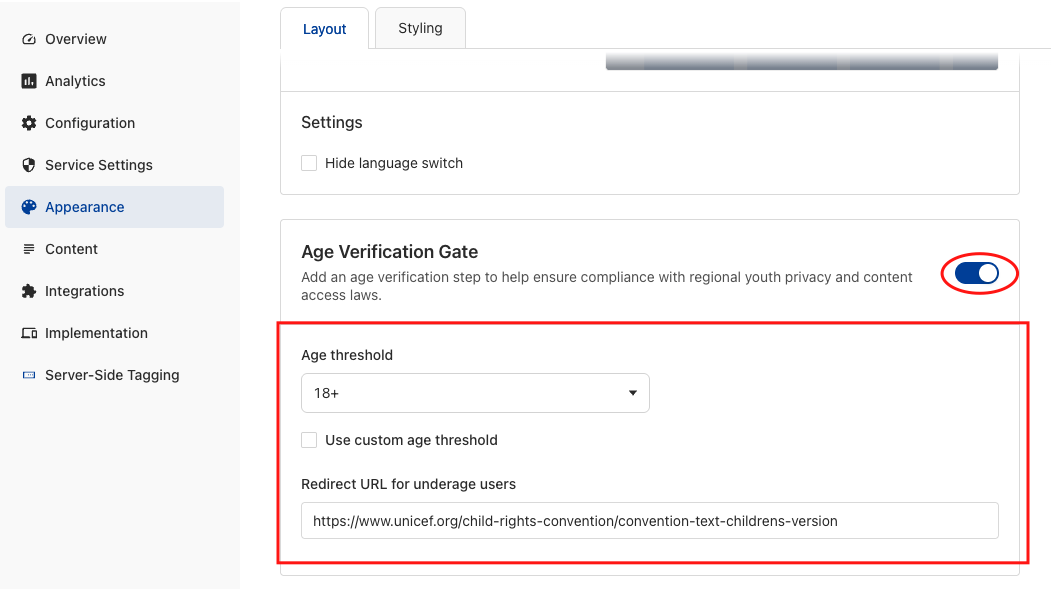
On the Layout tab, find the Age Verification Gate section and toggle the switch to On.
-
Use the Age threshold dropdown to select your primary age threshold (e.g., 18+).
If you need to use a threshold that is not listed in the dropdown, check Use custom age threshold and define the threshold you need.
-
In the Redirect URL for underage users field, enter the web address where users should be sent if they do not meet the age requirement (e.g., a child-friendly version of your site or an educational resource).
-
-
Optional: style the age gate under Appearance > Styling:
-
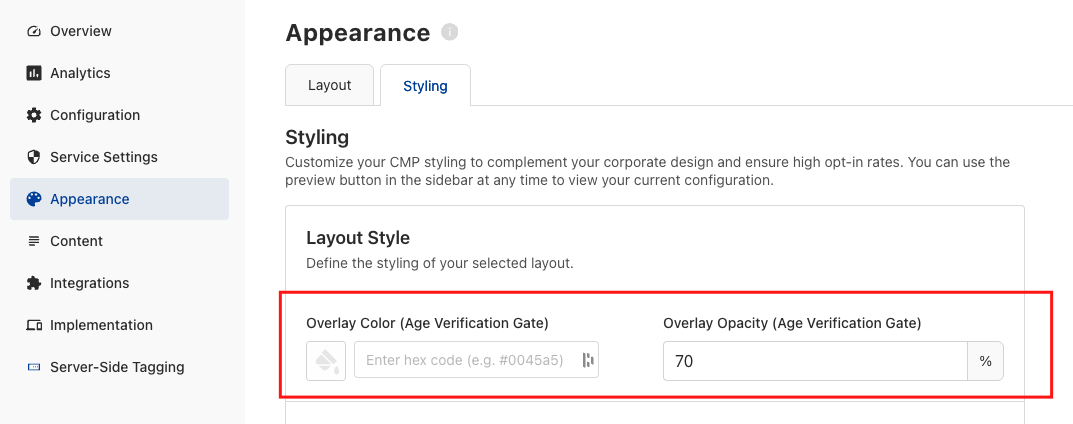
Customize the visual overlay. Adjust the Color (using a Hex code) and the Opacity (transparency) to ensure your website content is appropriately dimmed behind the gate.
-
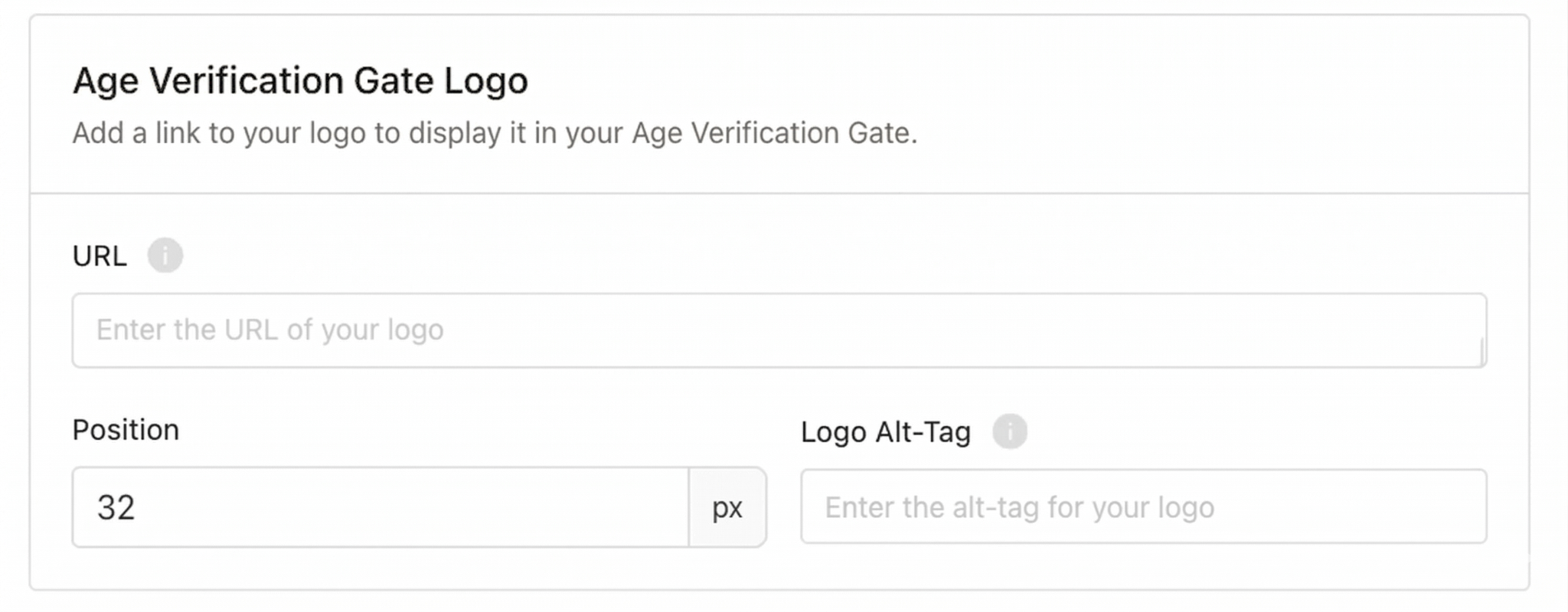
In the Age Verification Gate Logo section, add the URL of your company logo. You can also adjust the logo position and add alt-tag text for accessibility.
-
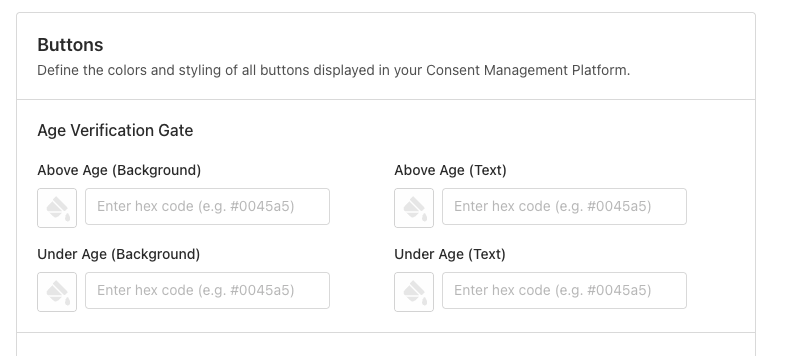
In the Buttons section, define the background and text colors for the Above Age and Under Age buttons to match your brand’s palette.
-
-
Optional: navigate to the Content tab to customize the content and the labels:
-
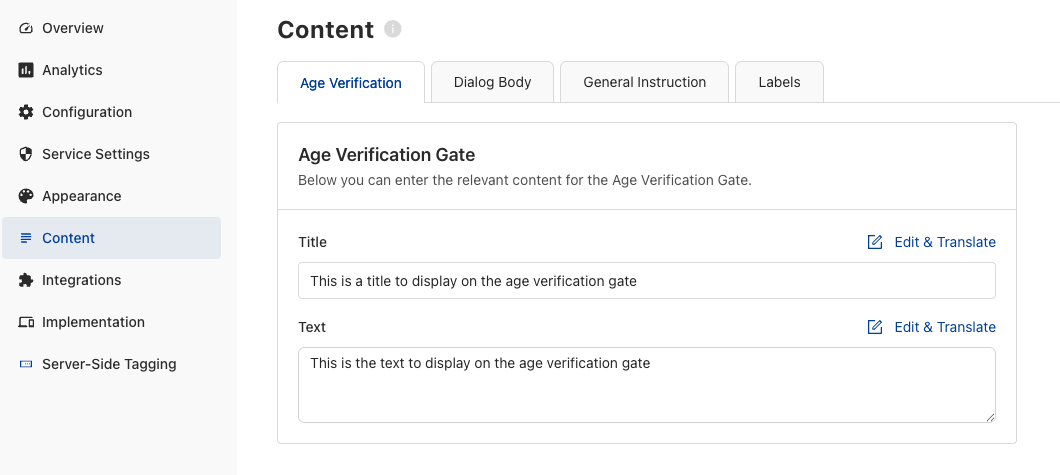
On the Age Verification tab, write a custom Title and Text that explains why you are asking for this information. Under Edit & Translate you can also ensure these prompts appear in the correct language for your various US regions.
-
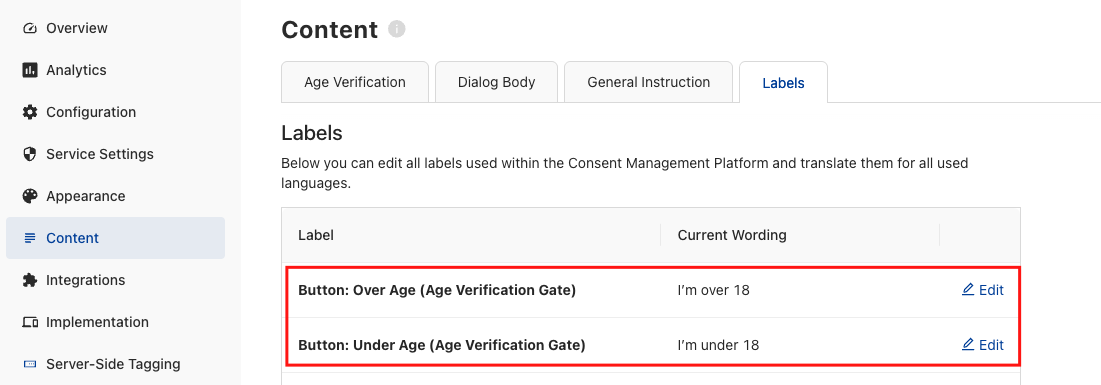
On the Labels tab, change the text appearing on the buttons (e.g., changing I'm over 18 to I am an adult).
-
-
Save and Publish the configuration.
How does age verification work
Once configured, users visiting from regulated regions will see an overlay. They cannot interact with the site or the standard consent banner until they have made a selection.
-
If they are over the age limit: The gate disappears, and the content of the page is shown.
-
If they are under the age limit: They are redirected to the URL you specified for this purpose.