Consent or Pay
Introduction
Consent or Pay is a CMP implementation pattern commonly used by publishers. It presents users with a clear choice: consent to personalised advertising and continue browsing for free, or pay for a subscription to access the site without tracking.
Usercentrics provides a native Consent or Pay theme that can be activated and configured directly from the Admin UI — no custom banner HTML required. The theme handles the banner display, button behaviour, and second-layer UX automatically, while publishers retain full control over the subscriber check logic on their own website.
Components of the Consent or Pay Model
There are two main components:
- CMP (Usercentrics) — Provides the native Usercentrics banner theme configured in the Admin UI. Also, enabling the consent API, delivers the second layer (privacy centre), and serves the TCF API (
__tcfapi). - Payment / Subscription Provider — Handles subscription management, user login, and redirect back to the originating page. The publisher owns this component.
How It Works
When a user visits the site, the publisher checks whether they are an active subscriber:
- Subscriber — The CMP is loaded silently without displaying any banner. No consent interaction is required.
- Non-subscriber — The Consent or Pay banner is shown. The user must either accept tracking or take the subscription path.
Setup in the Admin UI
Important
Consent or Pay requires your script to be running with the newest version of our CMP script. Go to your implementation tab and verify that you are using the V3 Script Tag.
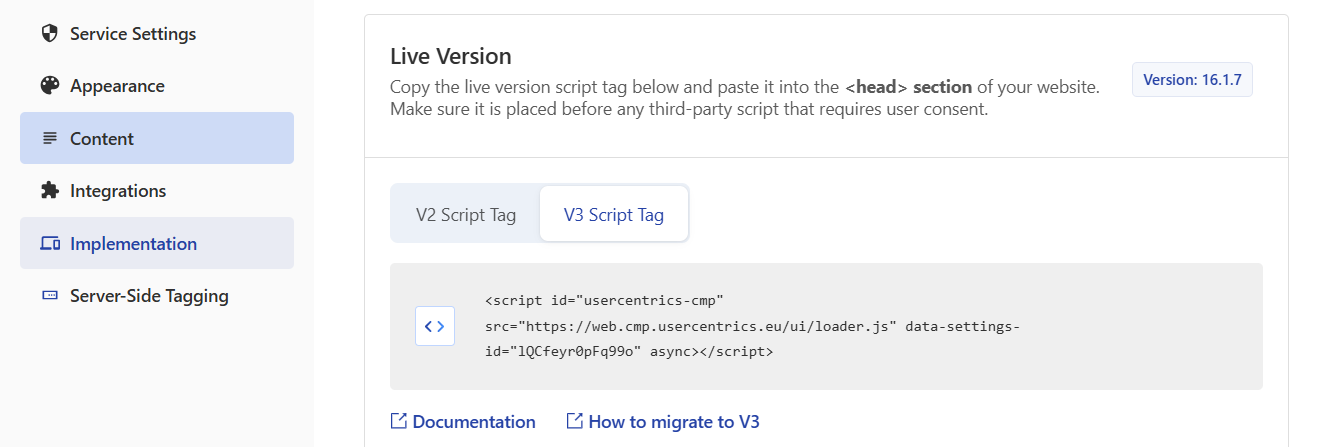
If you are not seeing this option, it means you are using the newest version of the Admin UI, which only includes the V3 script.
Step 1 – Activate the Consent or Pay Theme
In the Usercentrics Admin UI, navigate to your CMP configuration and activate the Consent or Pay theme. Once enabled, additional settings become available.
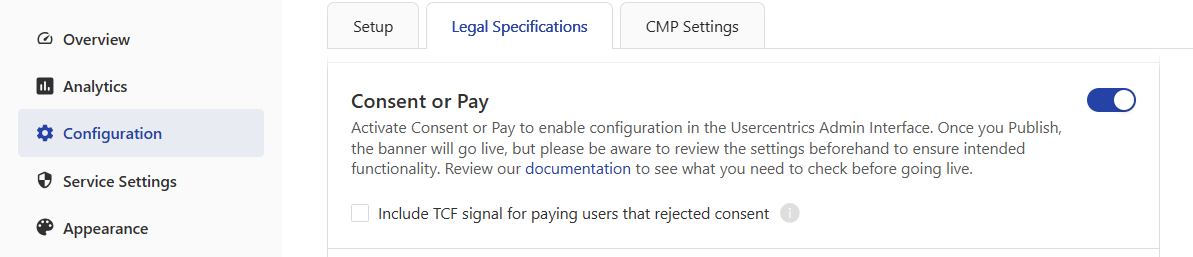
Including a TCF Signal for Paying users when Deny All action is given
Paying subscribers have rejected consent, and the default approach is that the TCF signal is in these cases not removed, to ensure that no vendors can process based on legitimate interest. It is possible to include the TCF signal for paying users, which may consequently allow for non-personalized advertising to serve on the webpage, based on legitimate interest as defined by TCF.
When not including the TCF signal for paying users, the __tcfapi is either absent or returns an empty signal.
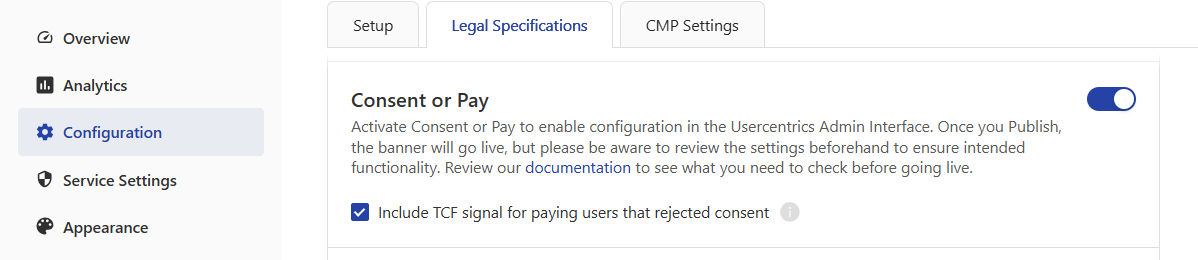
Step 2 – Configure the Banner
With the theme activated, configure the following settings:
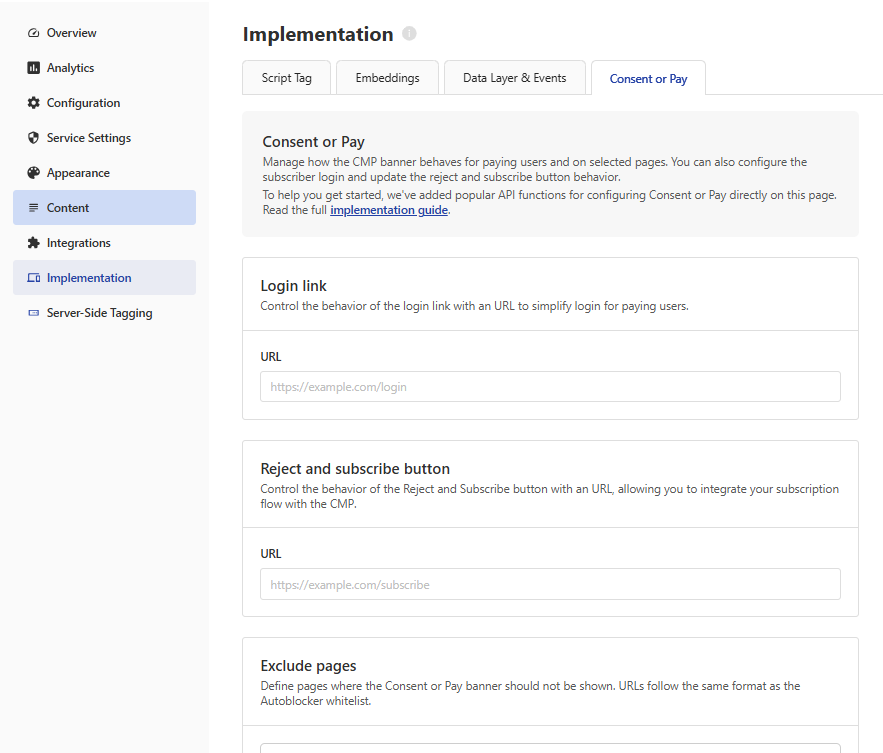
- Login link — Allows existing subscribers to log in directly from the banner. Configure as a redirect URL that sends the user to your login page.
- Reject & Subscribe button — This button replaces the standard Deny All button in the first layer. It functions as a deny-all action and simultaneously redirects the user to your subscription/payment page. It is configured as a Redirect URL: the user is sent to your subscription page.
- Exclude Pages — Use "Exclude Pages" to automatically suppress the CMP on any page where you would like to allow customers to sign up or log in without the CMP blocking them. When suppressing the CMP, it does not log a consent decision.
Labels and appearance
Customise button labels and link text under Appearance → Styling and Content → Labels.
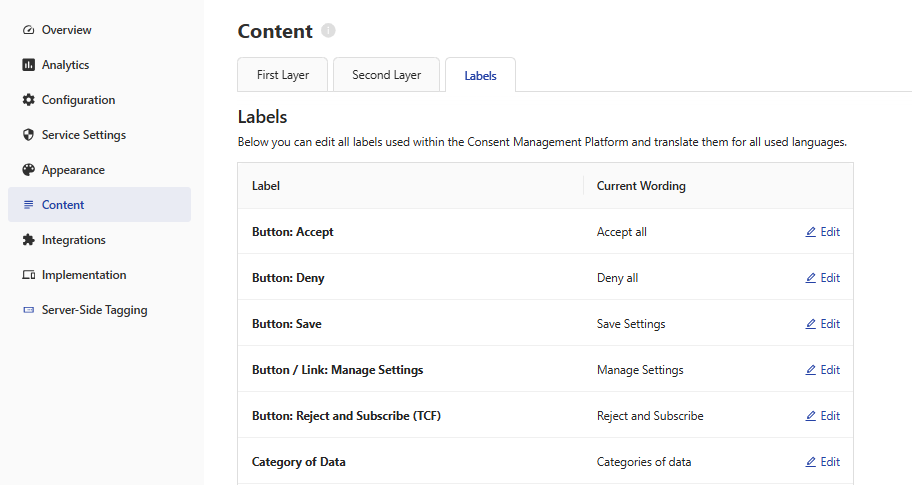
Consent or Pay message
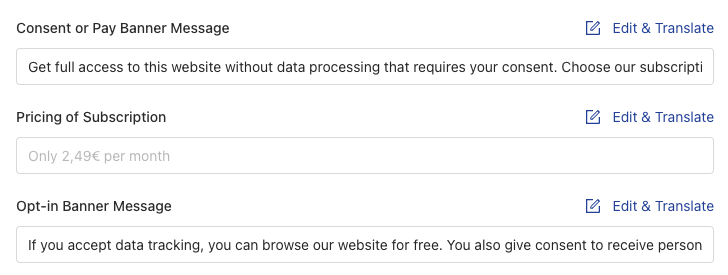
An optional text field under Content → TCF First Layer ("Consent or Pay Banner message"). A default text is provided, but this can be changed to align with your tone of voice and desired messaging.
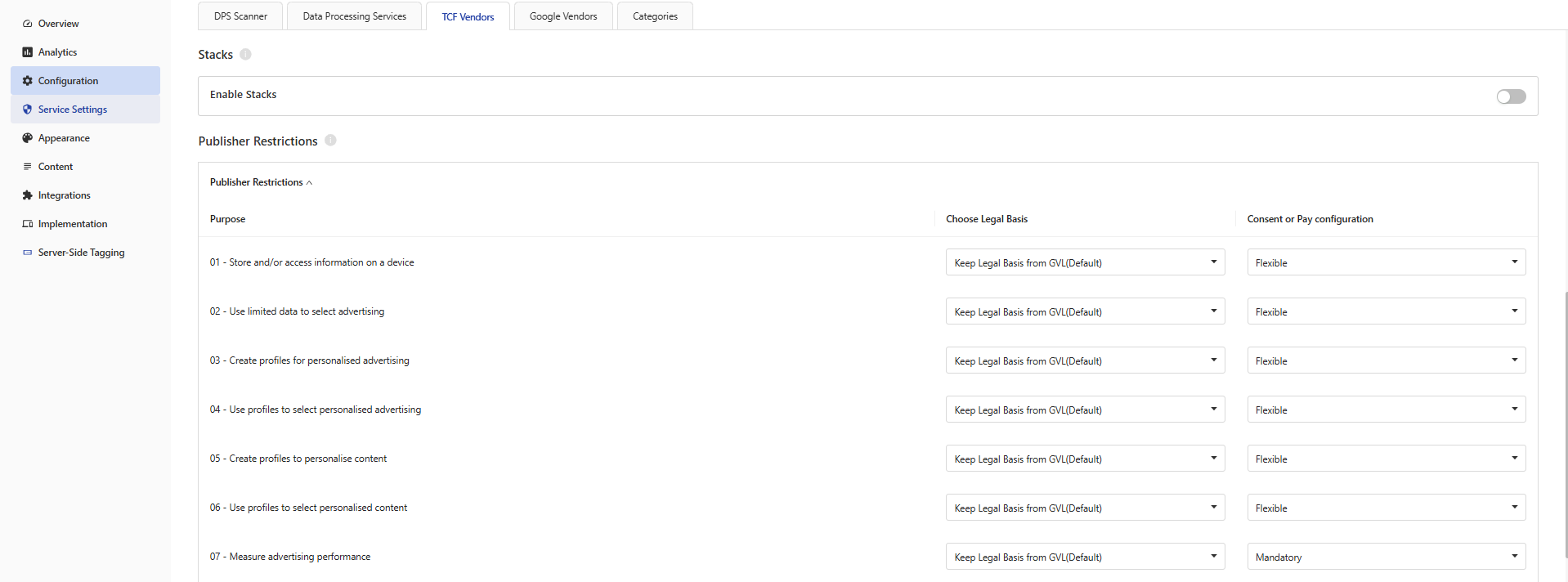
Step 3 – Configure Required vs Flexible Consent (Granular)
Usercentrics provides a Mandatory / Flexible classification for each Category, Purpose, and Special Feature, allowing the publisher to assess which purposes are required in order to not require payment for access.
In the Admin UI, alongside the Publisher Restrictions column, there is a Consent or Pay configuration column with two options per entry:
- Mandatory — This purpose is gated by the Consent or Pay model. The user must either consent or purchase a subscription.
- Flexible — This purpose can be declined by the user without forcing the pay option.
Second layer behaviour
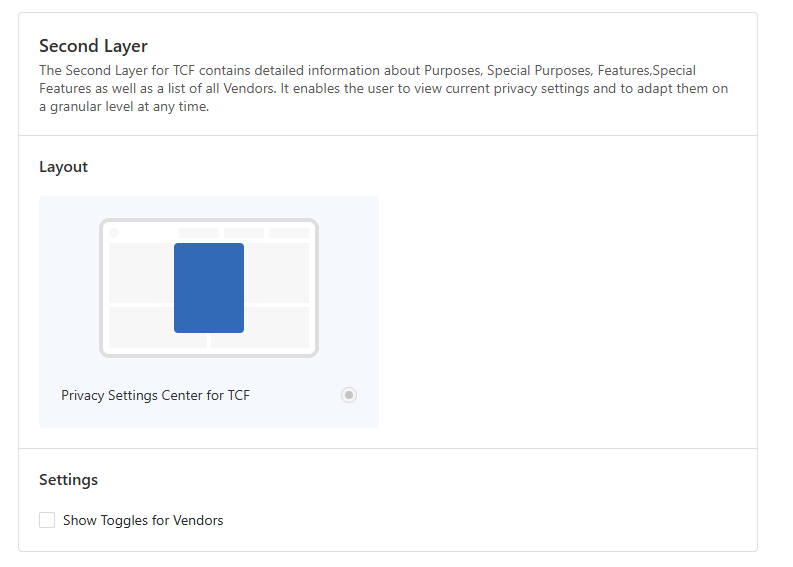
The second layer always includes a Deny All button (mandatory per TCF policy). After clicking Deny All, the user is returned to the first layer.
Vendor level toggles
When using Consent or Pay, consent is normally given based on the purpose or category. However, it is possible to allow vendor-level toggles. When doing so, the user can reject individual vendors while still providing consent to the purpose or category, and still access the website.
Required categories
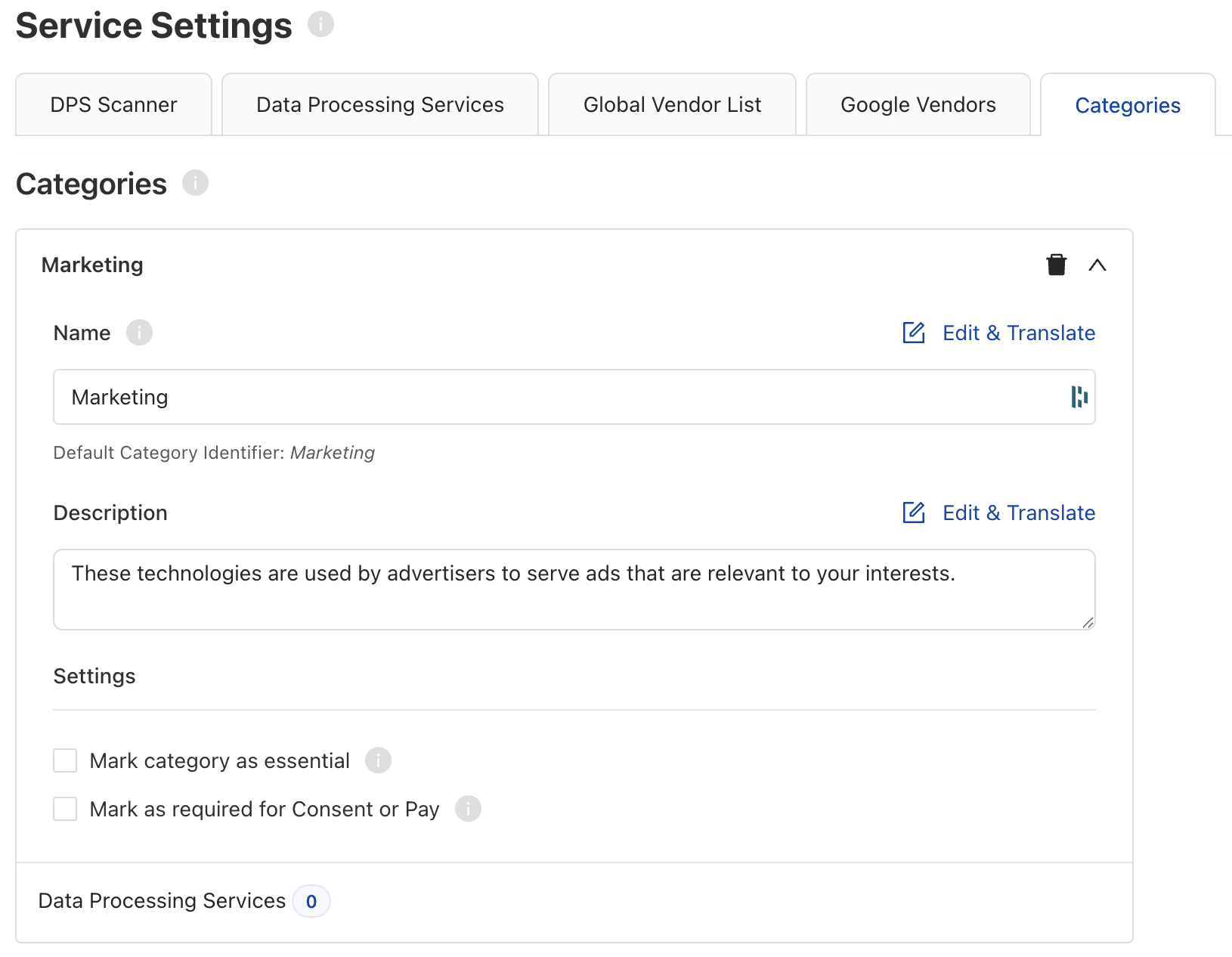
It is also possible to select that a category (used for your own Data Processing Services outside the scope of TCF) can be marked as required for Consent or Pay.
Publisher Website Integration
The Admin UI theme handles the banner automatically. However, the publisher is still responsible for the subscriber check on their own website — Usercentrics has no visibility into who is a paying subscriber.
Subscriber check and conditional CMP loading
The Usercentrics CMP will always try to prompt if the mandatory consent requirement is not met. Because we do not control the subscriber layer, the following function must be used to suppress the CMP for paying subscribers.
The following script must be implemented before the CMP script:
<!-- Subscriber check -->
<script type="application/javascript">
// Replace this with your payment provider's actual subscriber check
var isSubscriber = myPaymentProvider.isSubscriber();

// Suppress the CMP display for paying subscribers
var UC_UI_SUPPRESS_CMP_DISPLAY = isSubscriber;
</script>

<!-- CMP script -->
<script src="https://web.cmp.usercentrics.eu/tcf/stub.js"></script>
<script id="usercentrics-cmp" src="https://web.cmp.usercentrics.eu/ui/loader.js" data-settings-id="YOUR-SETTINGS-ID" async></script>
Checking consent status
Note
If you are using the Usercentrics Consent or Pay CMP banner, you do not need to perform this check. If you are utilizing a custom first layer, you may rely on this function.
When using the Required / Flexible consent model, you may use AreAllRequiredConsentsAccepted() instead of areAllConsentsAccepted() to check whether the user has provided consent for all purposes marked as mandatory. This allows users who have declined flexible purposes to still access the site freely.
// Check if all Required consents have been given
if (UC_UI.AreAllRequiredConsentsAccepted() === true) {
  // Grant access — user has consented to all required purposes
} else {
  // Show Consent or Pay banner or restrict access
}
If you are not using the granular consent requirement, you may choose to still use areAllConsentsAccepted().
Warning
The AreAllRequiredConsentsAccepted function does not take into account vendor-level consents, if toggles are made available for vendors.
KPIs to Monitor
When deploying your new Consent or Pay CMP banner, it is recommended that you keep track of the KPIs listed below to ensure the launch is working as intended.
| KPI | What to expect |
|---|---|
| Accept Rate % | You should expect an increase in Accept Rate %. |
| Interaction Rate % | You may notice a small decline in Interaction Rate %, as some users may neither want to accept nor subscribe for access. |
| Daily Accepts | Daily Accepts show the absolute number of daily accepts. Compare this to the amount of daily users in your website statistics, for a full picture. |
Note
Usercentrics does not provide legal guidance. Best practices and applicable regulations vary by jurisdiction. Publishers should obtain their own legal assessment, particularly regarding granular consent requirements (see e.g. UK ICO guidance and DK DPA guidance).