Google Consent Mode
What is Google Consent Mode?
Google Consent mode helps you to obtain your users consent and pass it to Google seamlessly. Consequently, Google tools adjust their behaviors automatically. Google further supplements this by filling gaps through conversion modeling and behavioral modeling, aiding you in achieving your marketing goals. For mobile applications, this is crucial to ensure the proper functioning of Firebase Services.
Those who do not have consent mode enabled will not be able to capture new EEA users in their audiences starting from March 2024.
How to implement Google Consent Mode in your app
To successfully incorporate Google Consent Mode V2 into your mobile application, there are a few essential steps to ensure a seamless integration process.
Consent Types
Google created four new types of consent types which includes:
| Consent Type | Description |
|---|---|
| ad_storage | Enables storage, such as cookies (web) or device identifiers (apps), related to advertising. |
| ad_user_data | Sets consent for sending user data to Google for online advertising purposes. |
| ad_personalization | Sets consent for personalized advertising. |
| analytics_storage | Enables storage, such as cookies (web) or device identifiers (apps), related to analytics, for example, visit duration. |
More details can be found in their official documentation.
Setting up Account Settings
To streamline all consent types to Google, it's crucial to adhere to the steps outlined below. Following are instructions according to the chosen legal framework available on our Admin Interface.
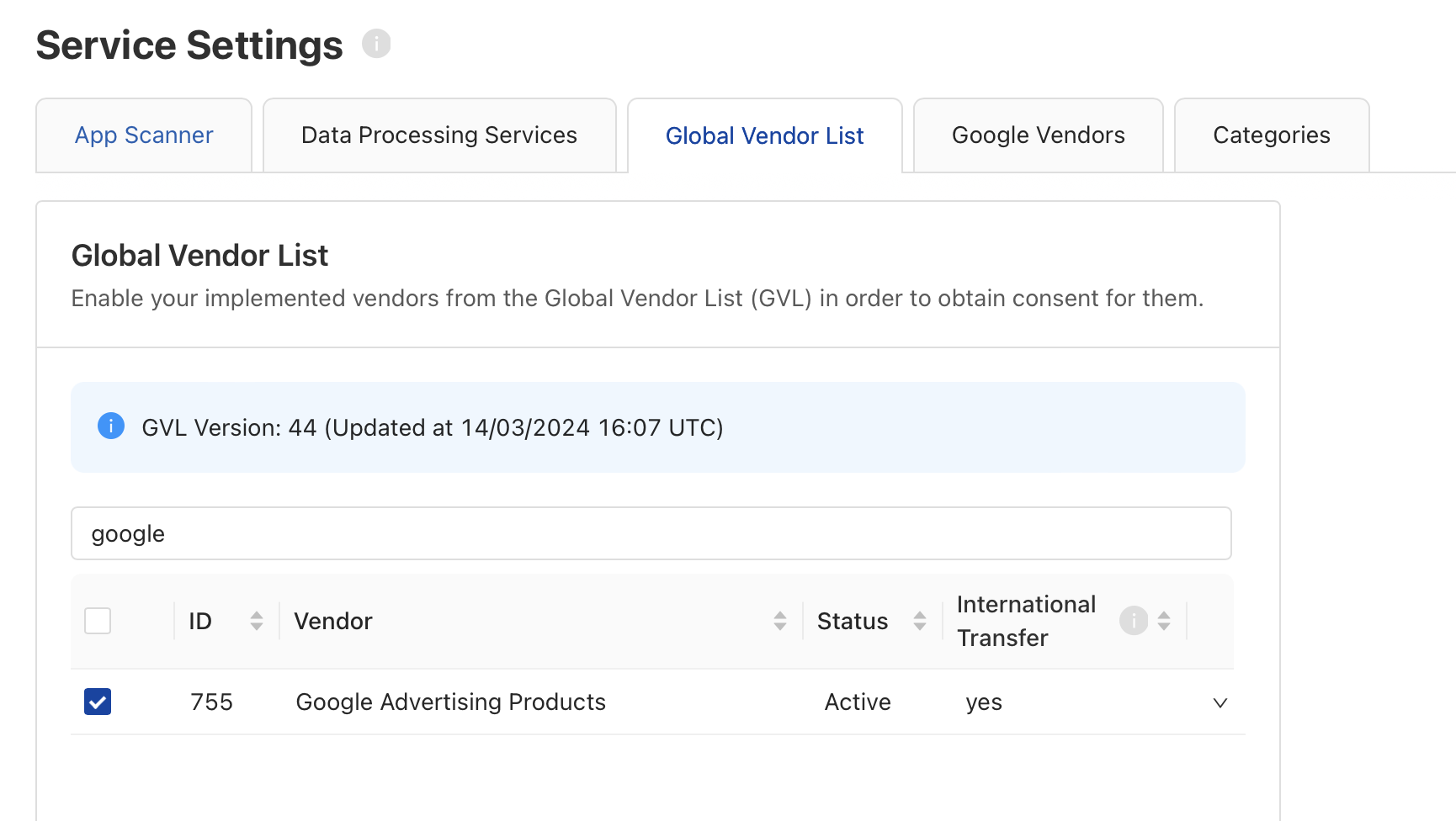
Google adheres entirely to TCF policies and is registered as a vendor with ID 755 on IAB Global Vendor List (check out the Vendor List).
Therefore, it's mandatory to select this vendor from the Global Vendor List to enable the SDK to signal Consent Mode accurately.
Full overview of the purposes and corresponding consent types can be found in the official documentation.
Example banner:
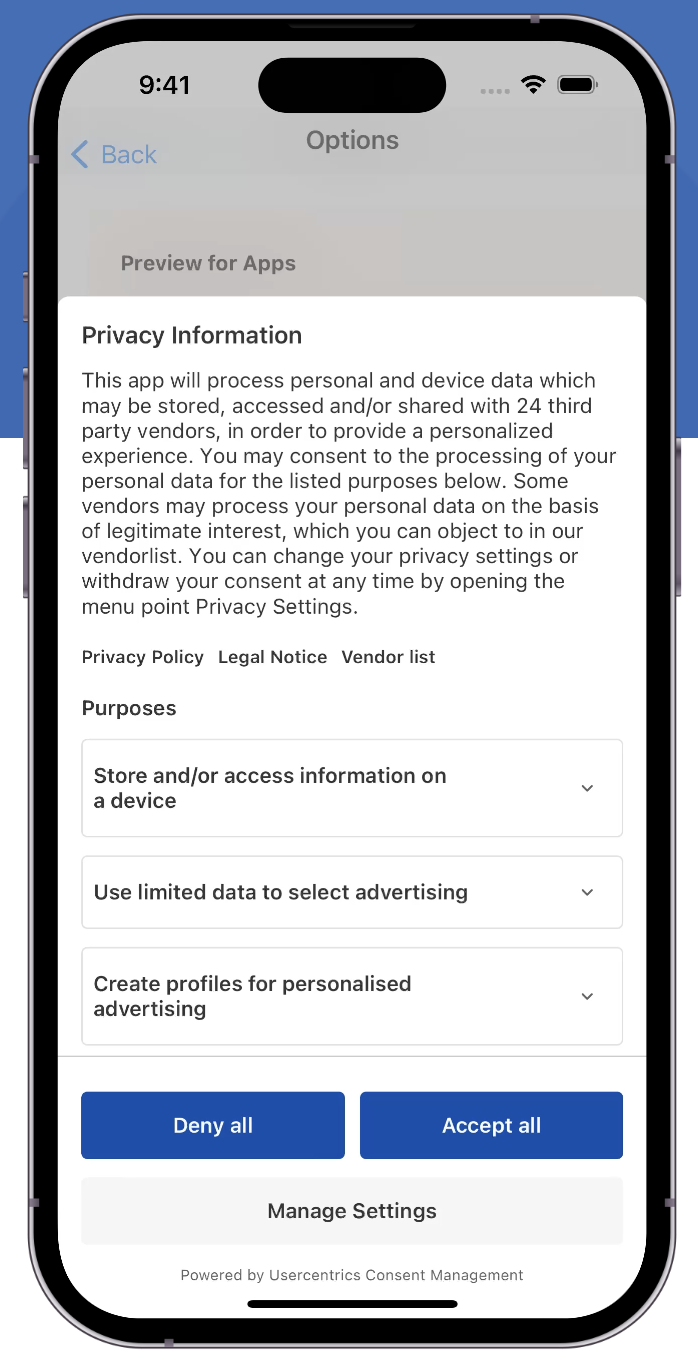
After end-user interacts with the banner, the following scenarios could happen:
- Accept All ✅
All Consent Types will be set to true.
- Deny All ❌
All Consent Types will be set to false.
- Save Settings (granular choices) 📋
This is the trickiest scenario because the Consent Types may have different values, since it will vary according to the consent given to Google Adverting Products TCF Vendor, Purposes being used and their Legal Basis.
Short example showing which options users could customize:
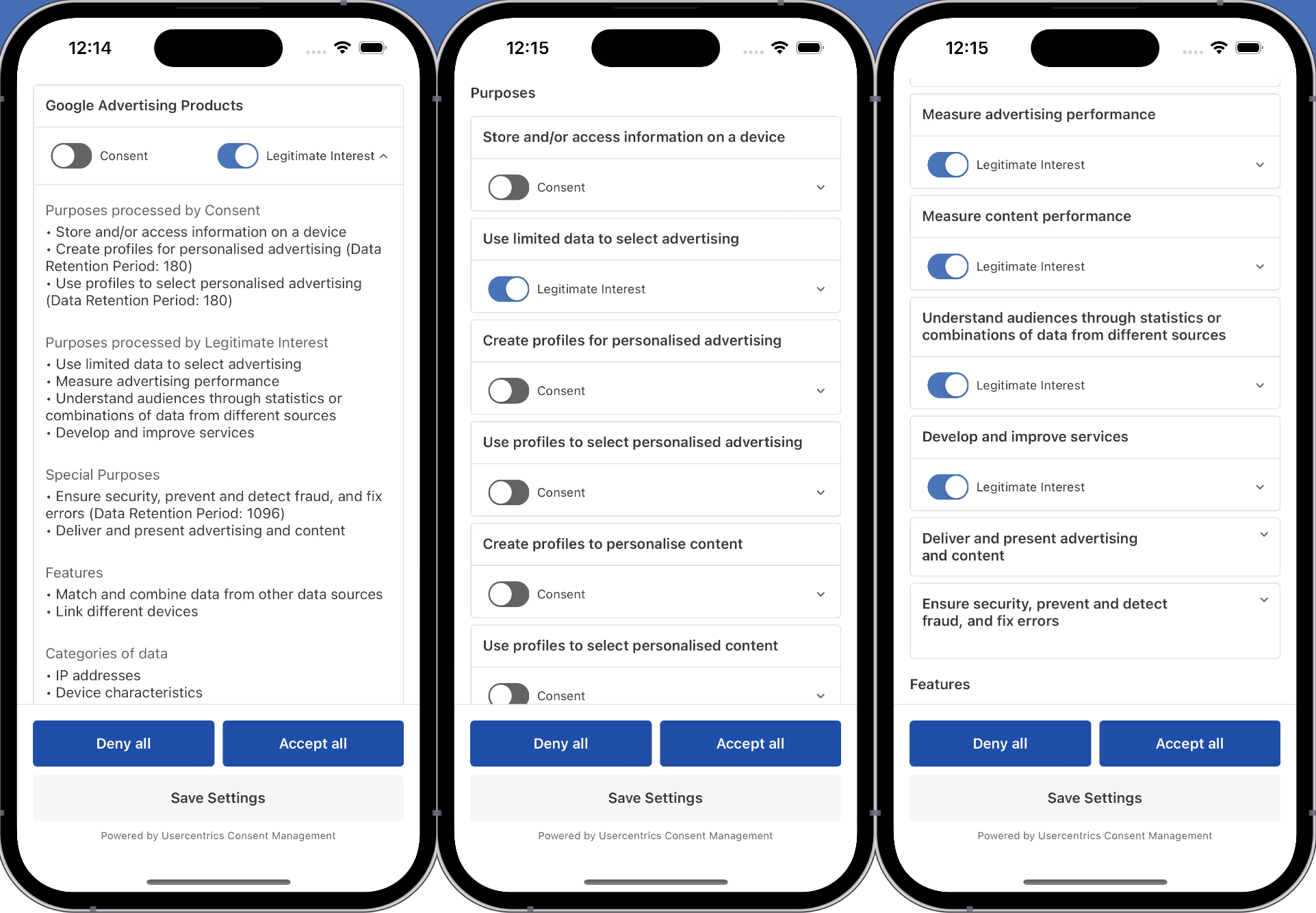
Please, check Google's official documentation to have an overview of possible outcomes of granular choices made by the end-user.
We always set the enableAdvertiserConsentMode flag to true, delegating the interpretation of the TCString to Google in order to infer consents.
For more details on how Google will process the generated TCString, click here.
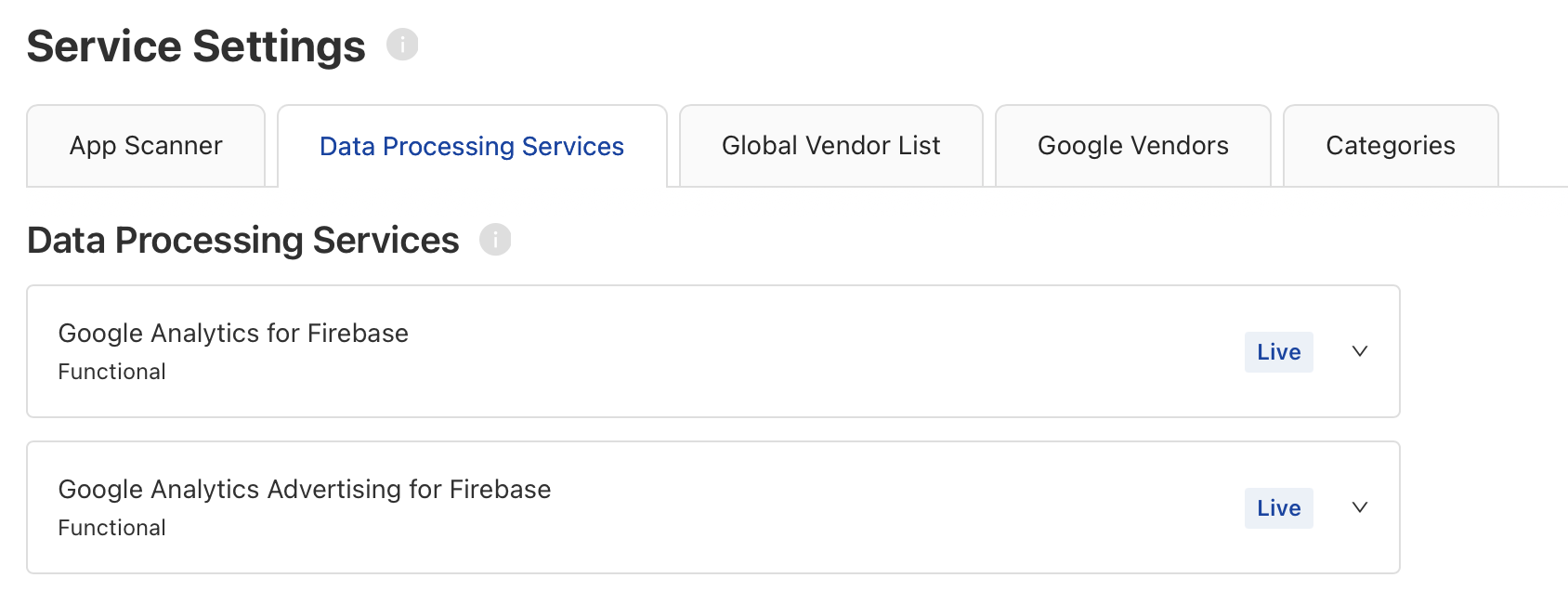
When using GDPR only, if you need to have all the four Consent Type flags set, you need to add two Data Processing Services.
In order to set values related to Analytics data Collection, you should add in the Admin Interface the DPS named Google Analytics for Firebase with template ID diWdt4yLB.
We will update the analytics_storage flag and set Analytics Collection enabled or disabled, according to the consent given to Google Analytics for Firebase.
In order to set values related to Advertising data Collection, you should add in the Admin Interface the DPS named Google Analytics Advertising for Firebase with template ID GqhZxB-iiydzEk.
We will update the flags ad_storage, ad_user_data and ad_personalization according to the consent given to Google Analytics Advertising for Firebase.
More details on how we implement the signaling, check out our Consent Mediation documentation.