The Analytics Export Service allows the automated download of Interaction Analytics and Granular Analytics reports — including an A/B testing variant option for Interaction Analytics — via a download link. From a technical perspective, it's a REST API calling an export service. This allows it to be compatible with any BI (Business Intelligence) system.
Availability
The analytics data export is a premium add-on feature, available only to customers with Corporate or Premium subscriptions.
Prerequisite
For using this feature, you will need the following:
Corporate or Premium subscription
API key for authentication
analyticsId, an identifier of the report that you generate
To obtain the API key and the analyticsId, open a support ticket or reach out to your customer success manager. In the request, please make sure to provide the following information:
Configurations (
settingsIdvalues) the export should be provided for.Frequency of the reports: monthly / weekly / daily.
Aggregation types:
Interaction Analytics:
{Aggregation} = interactionGranular Analytics:
{Aggregation} = granularInteraction + A/B testing Analytics:
{Aggregation} = interaction-abvariant
After the analytics data export has been activated for you, you will receive your analyticsId and authentication credentials. You can also find a more information about this process and subscriptions in this knowledge base article.
HTTP request
To export the analytics data, send an HTTP GET request with the following format: {serviceUrl}/download/v2/analytics/{analyticsId}/{filePrefix}
Parameters:
serviceUrl=https://data-export.service.usercentrics.euanalyticsId= An aggregator of differentsettingsIdvalues. The analytics ID will be provided by Usercentrics Support upon request. For more info, read this knowledge base article.filePrefix= Analytics file prefix, defines the output file’s format and content. Example:interaction-2026-01-01
Example request:
curl --location --request GET 'https://data-export.service.usercentrics.eu/download/v2/analytics/analyticsID/interaction-2026-01-01' \
--header 'X-API-Key: your_key'
To generate your HTTP request, you can use the Swagger documentation.
In response, you will get a JSON file, containing an array of download links which are valid for 15 minutes. Example response:
{
    "downloadUrls": [
        "https://storage.googleapis.com/analytics-raw-data-aggregation/analyticsId/file-1?auth=token",
        "https://storage.googleapis.com/analytics-raw-data-aggregation/analyticsId/file-2?auth=token"
    ]
}
filePrefix
The filePrefix defines the output file’s format and content. Usercentrics provides analytics for Interaction Analytics and Granular Analytics on a monthly, weekly and daily basis. The file prefix varies for the different aggregation types and aggregation frequency.
Aggregation type
The aggregation type defines, which analytics you want to receive via the API. The two following options are available:
Interaction Analytics:
{Aggregation} = interactionGranular Analytics:
{Aggregation} = granularInteraction + A/B testing Analytics:
{Aggregation} = interaction-abvariant
Frequency
The following table explains how to work with the different aggregation frequencies:
Frequency | Start date and end date | Format | Example | Availability |
|---|---|---|---|---|
Monthly analytics | Use the first date of the month as a start date and the last date of the month as a second date | {Aggregation}-YYYY-MM-DD-YYYY-MM-DD | interaction-2026-04-01-2026-04-30 | On the 1st of every month at around 8am UTC. |
Weekly analytics | Use Monday as start date and Sunday as second date | {Aggregation}-YYYY-MM-DD-YYYY-MM-DD | granular-2026-04-04-2026-04-10 | On every Monday at around 8am UTC. |
Daily analytics | Use the exact date on which you want the analytics | {Aggregation}-YYYY-MM-DD | interaction-2026-04-01 | The next day at around 8am UTC. |
Authentication
To authenticate, send the API key either via header or query parameter:
HTTP Header:
x-api-key: 'your_key'Query parameter:
apiKey=your_key
Your individual key will be provided by Usercentrics Support upon request. Read this knowledge base article to learn how to receive it.
What does the report look like?
Interaction Analytics Raw Data Export
.png?sv=2026-02-06&spr=https&st=2026-10-22T03%3A15%3A34Z&se=2026-10-22T03%3A28%3A34Z&sr=c&sp=r&sig=L3gLvAnly4SqBRehuP6Faic9tHIJgBlJU5AMA3ZnIbM%3D)
The following event types are available for Interaction Analytics:
Value | Event type | Description |
|---|---|---|
|
| Triggered when the CMP is shown |
|
| Triggered by clicking the Accept All button |
|
| Triggered by clicking the Deny All button |
|
| Triggered by clicking the Save button |
|
| Triggered by clicking the Imprint link |
|
| Triggered by clicking the More Information button |
|
| Triggered by clicking the Privacy Policy link |
When using the interaction-abvariant aggregation type, the file includes an additional abvariant column, indicating which A/B test variant (e.g. variant0, variant1) the entry belongs to.
.png?sv=2026-02-06&spr=https&st=2026-10-22T03%3A15%3A34Z&se=2026-10-22T03%3A28%3A34Z&sr=c&sp=r&sig=L3gLvAnly4SqBRehuP6Faic9tHIJgBlJU5AMA3ZnIbM%3D)
Granular Analytics Raw Data Export
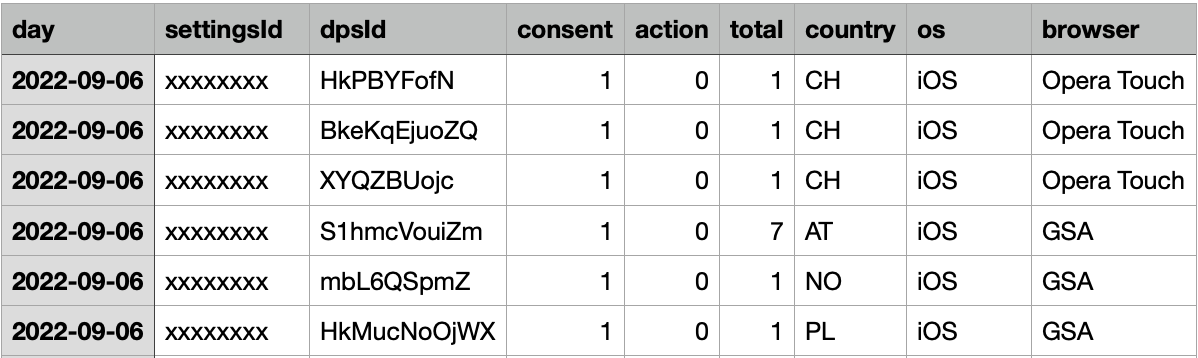
There are two different possible values for consent:
Value | Description |
|---|---|
| Opt-out |
| Opt-in |
Values for action in the raw data:
Value | Description |
|---|---|
| Accept All ( |
| Deny All ( |
| Essential change: indicated service as essential that wasn’t before and vice versa ( |
| User is visiting the website for the first time ( |
| A bot script is detected or a CCPA CMP first visited or where we accept all implicitly for non EU users ( |
|
|
| Tcf string change ( |
| Granular Accept or Granular Deny ( |
| Mobile session restore ( |