The Usercentrics Account Interface allows you to manage all your configurations (Setting-IDs), geolocation rulesets and related permissions from a single service.
Major features of the service:
Create and manage your configurations
Manage the permissions for your company as well as your configurations
Set up geolocation rulesets for your configurations
Login
To access the Account Interface, go to https://account.usercentrics.eu/. If you already have an account on https://admin.usercentrics.eu/, you may use the same login credentials. If not, create a new account.
Overview
Once you logged in to the Account Interface, you find all your companies to which you have access.
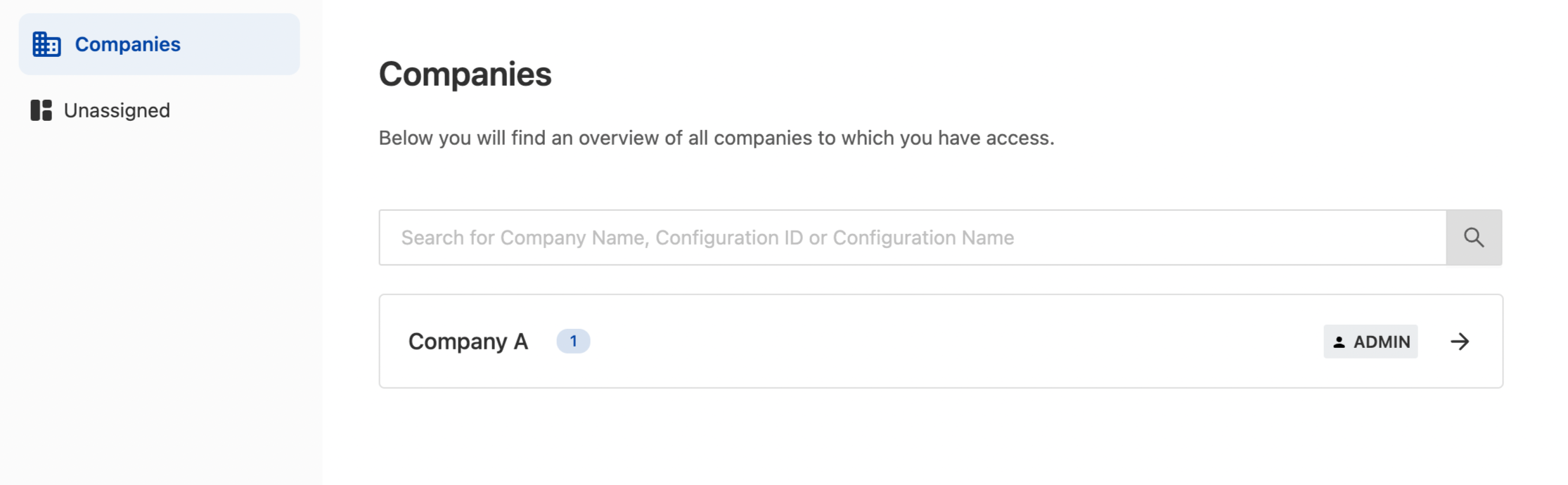
You can create new configurations for your company, manage the company details, permissions and assigned settings by clicking on your company in the overview.
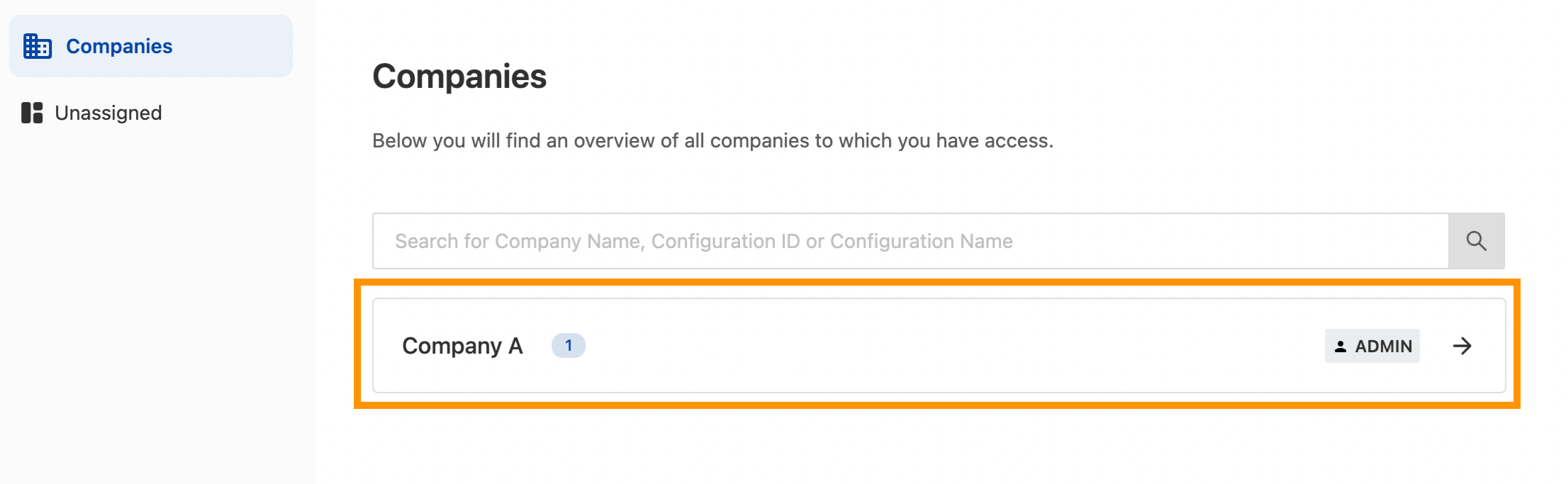
Additionally you can see all the configurations which currently are not assigned to one of your companies by clicking on “Unassigned”. Further information on how to assign unassigned configurations to a company can be found here.
Manage your configurations
A configuration describes one Consent Management Platform (CMP) setup. If you’re running multiple websites with different data processing services, you may wish to use one configuration per domain. Other use cases could be different configurations for different legal frameworks (e.g. GDPR, TCF, CCPA).
Create new configurations
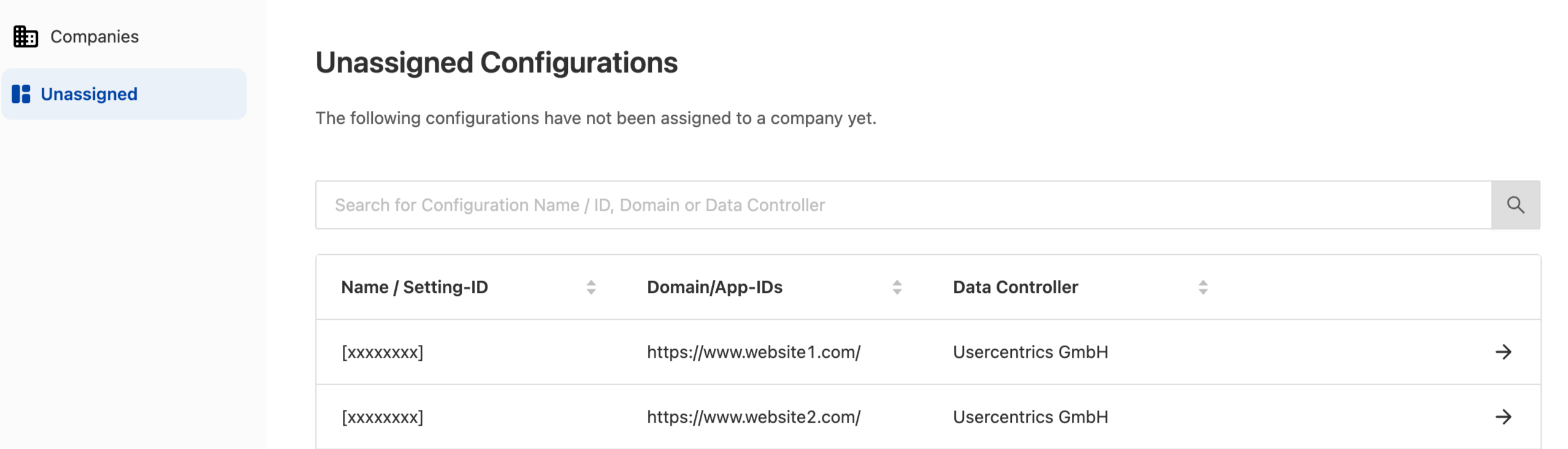
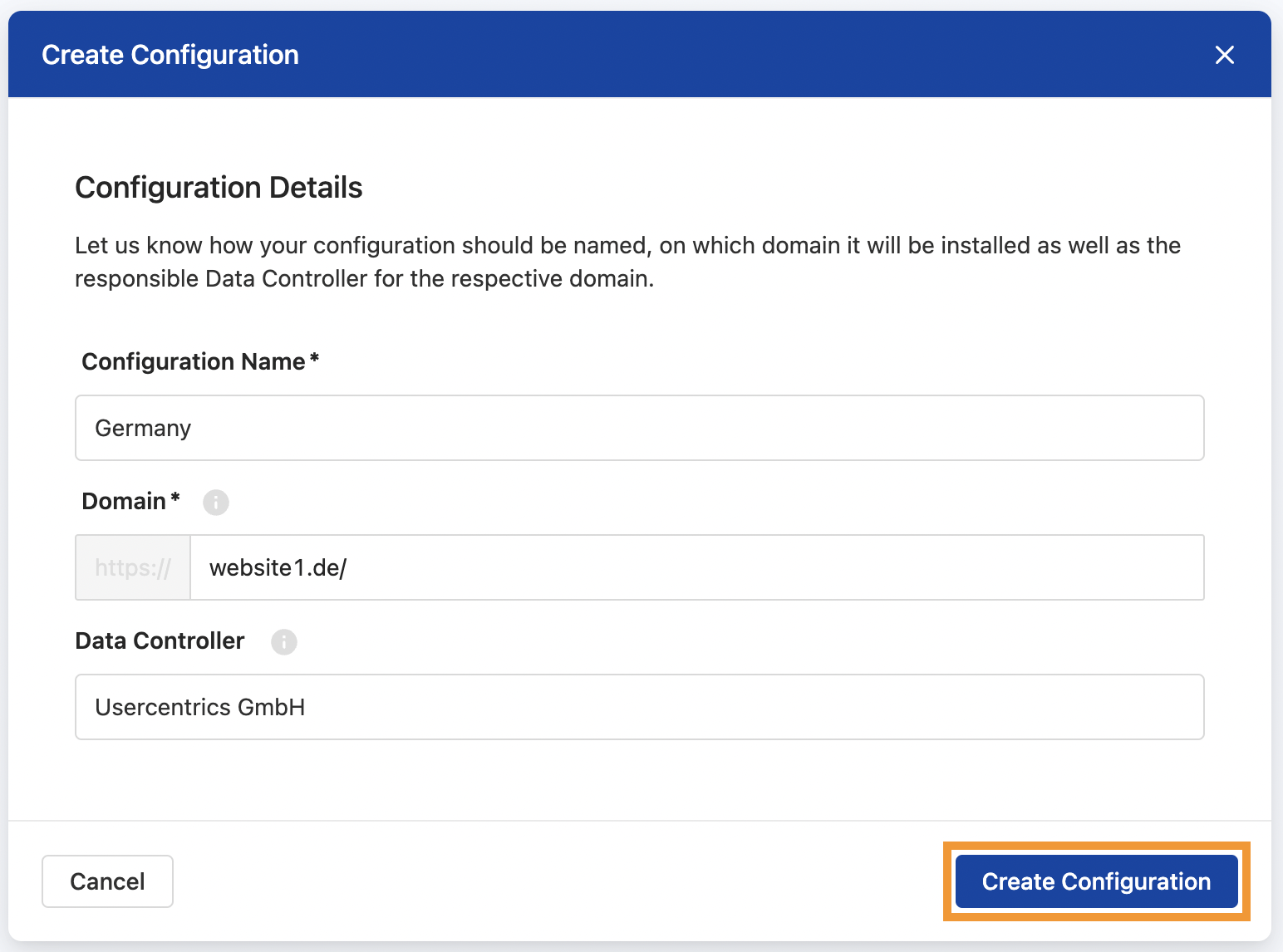
To get started with your first configuration, click on the Create Configuration button.
A popup will appear asking you to name your configuration and additionally add the domain and data controller. For more information on the domain and data controller move your mouse on the (i) icon. Once all the information is entered, please click Create Configuration.
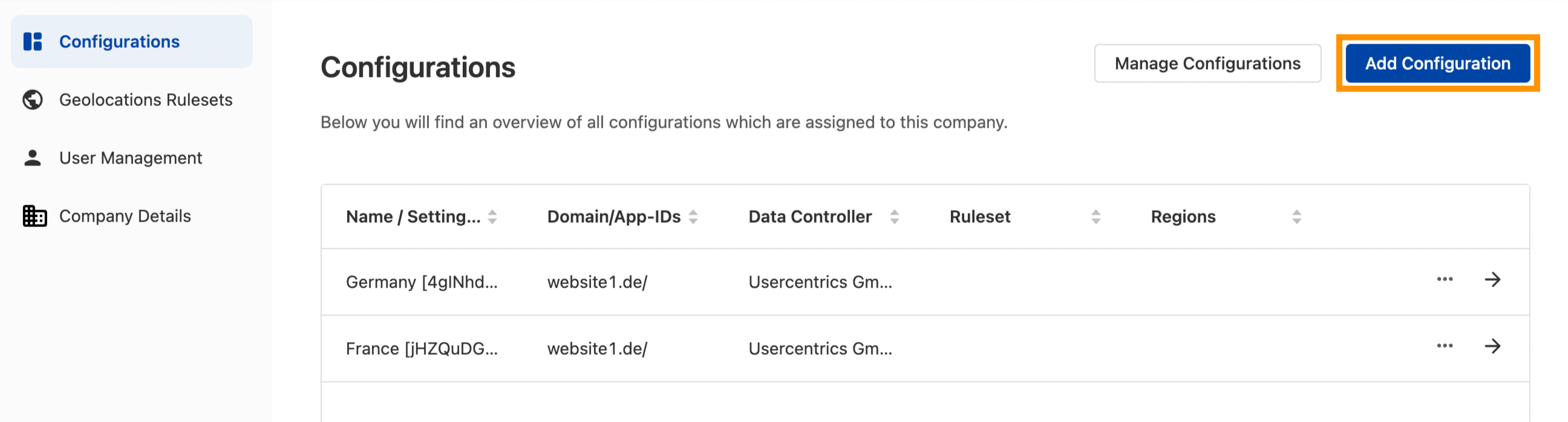
To add more configurations, click Add Configuration in the top right corner.
Configure configurations (Setting-IDs)
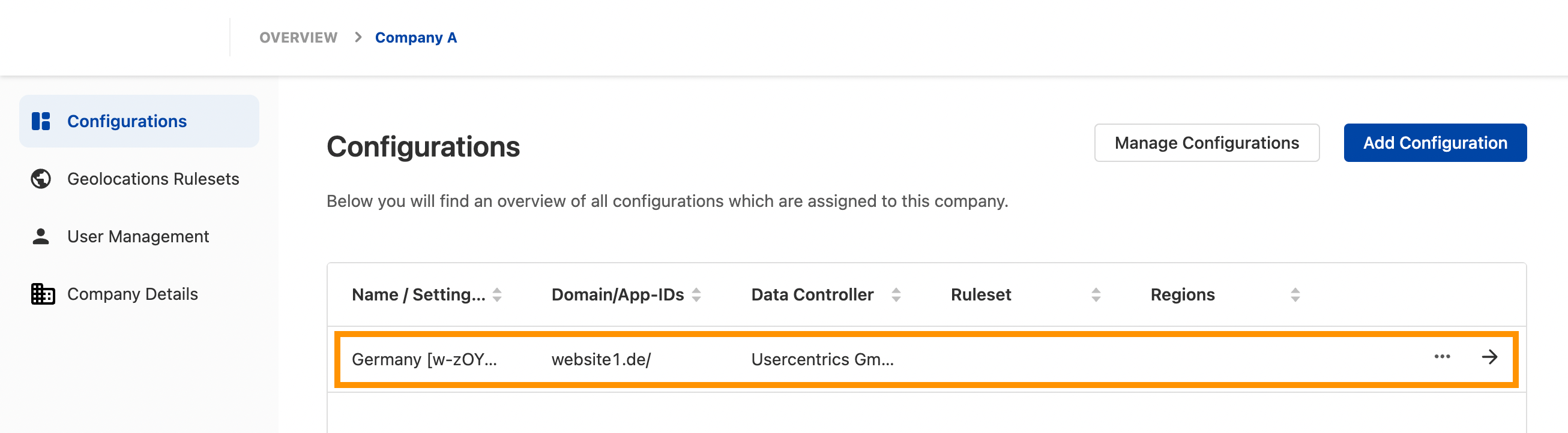
To set up your newly created configuration or make changes to an existing one, go to Configurations in the sidebar and click on the configuration you want to access and edit. This will take you to the Admin Interface for the respective configuration, where you can e.g. add Data Processing Services or adjust the styling and content of your CMP configuration.
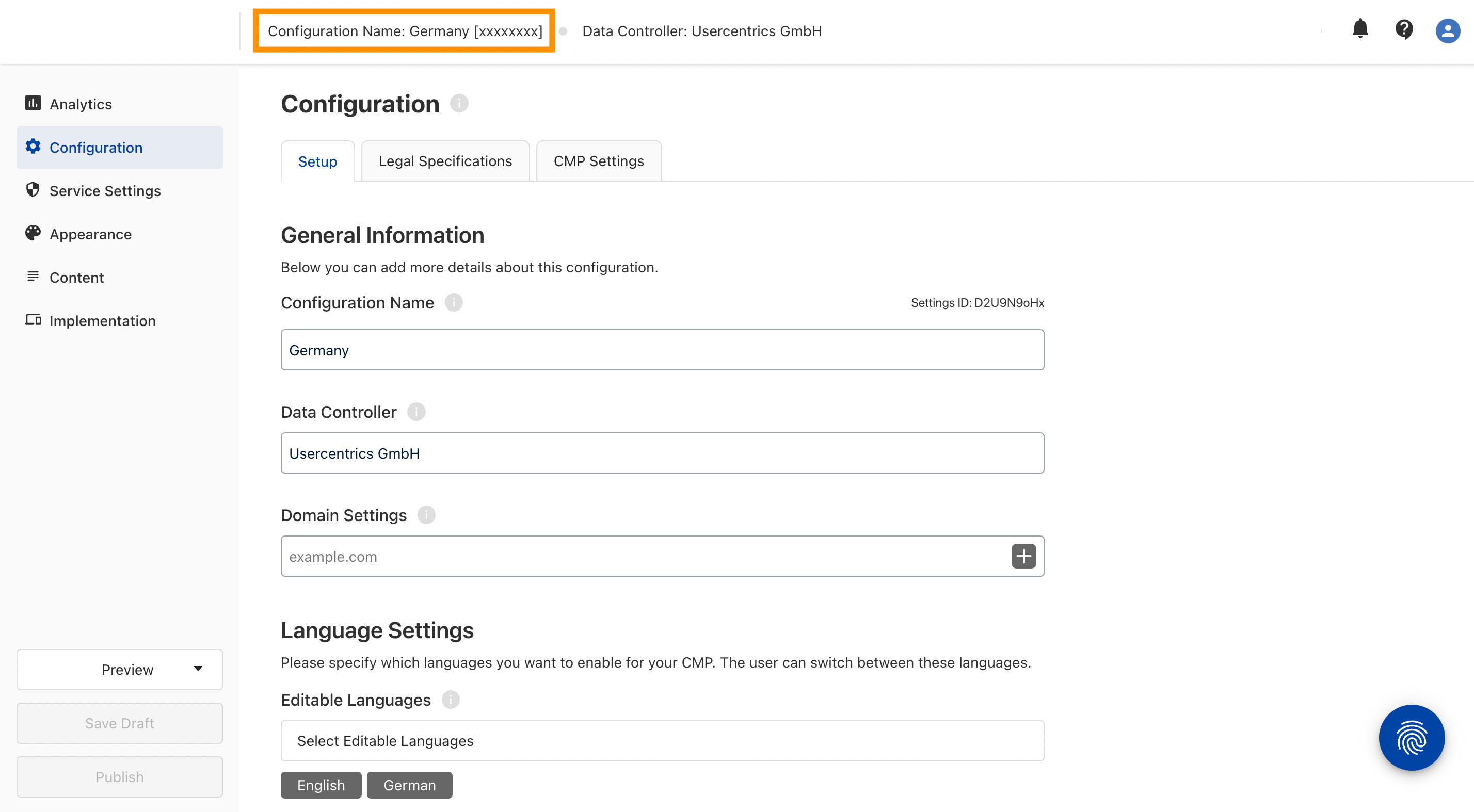
Within the Admin Interface, you will always find the name and ID of your configuration on the top in order to provide more transparency on the configuration you are currently working on.
Geolocation rulesets
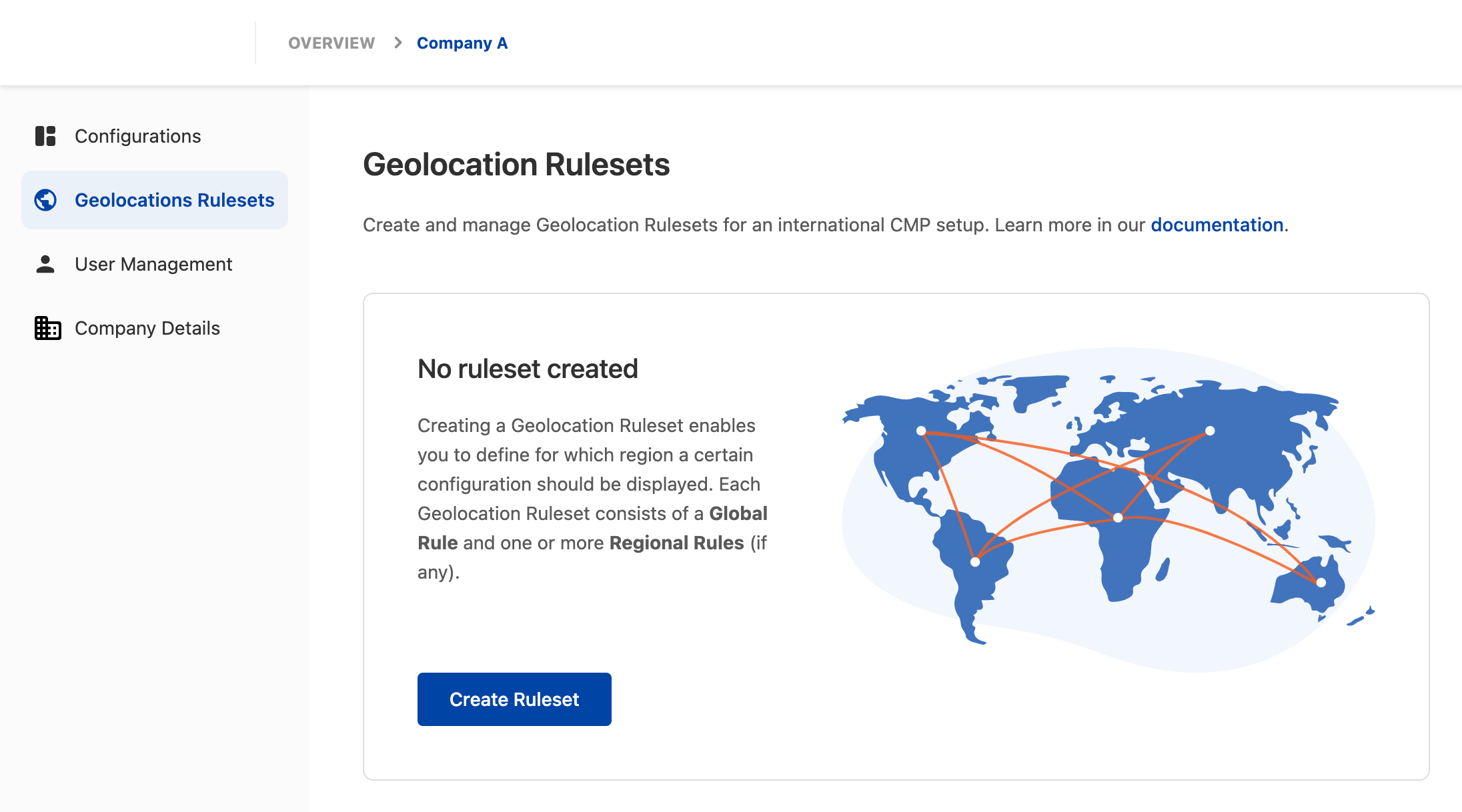
The Account Interface allows you to set up geolocation rules for all your configurations (Setting-IDs). This will enable you to set up and display different CMP configurations on your website based on the user’s location. Further information can be found in Geolocation rules. Only Company Admins are allowed to manage rulesets, so the corresponding item in the side menu is shown only for them.
Manage access
The Account Interface also allows you to add users to your company and / or individual configurations, while granting different permissions based on what the user should be allowed to do.
Manage access for your company
To manage the users having access to you company, go to User Management in the sidebar and click on the settings symbol in the top right corner. Users added to your company will automatically have access to all configurations assigned to the company.
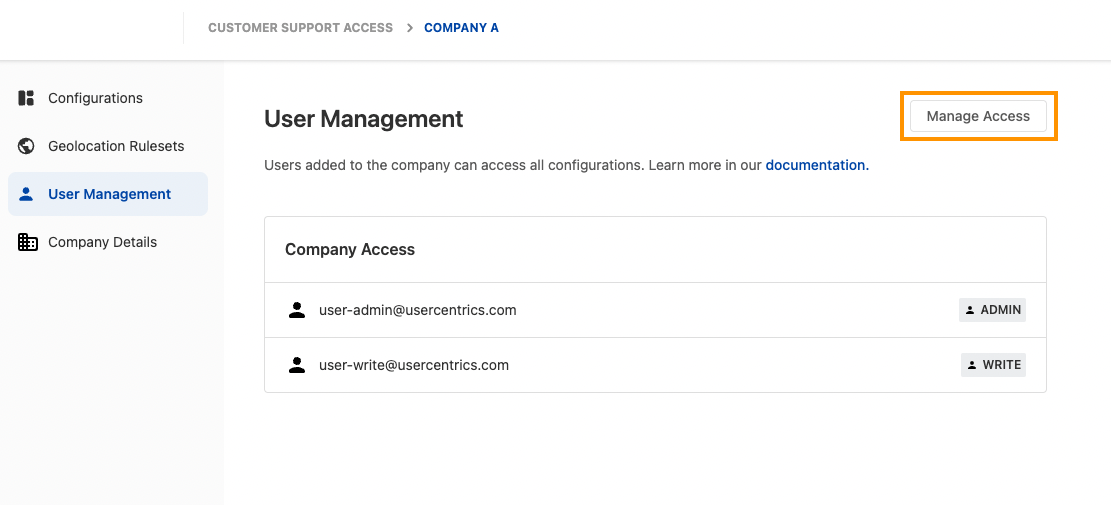
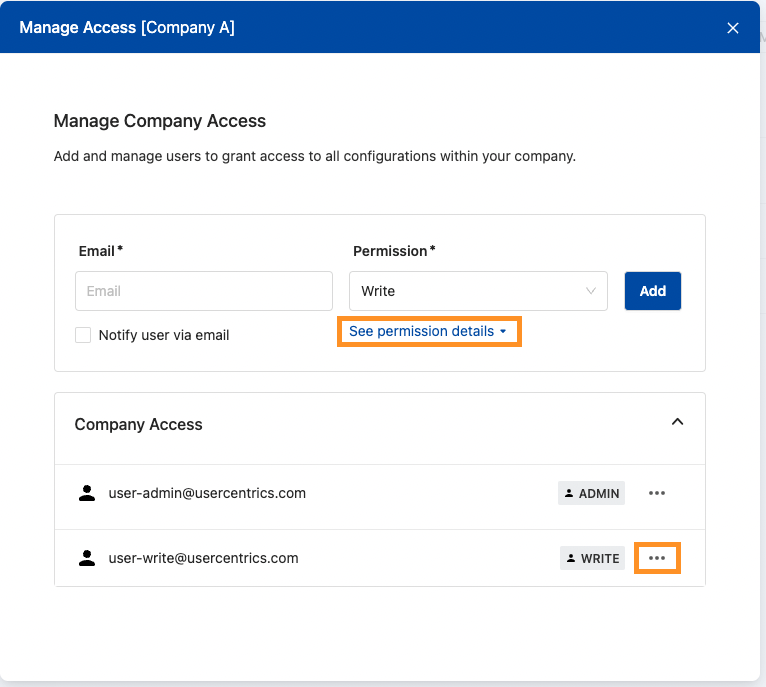
The opened popup allows you to see which users have which permission to the company and manage them accordingly. To edit the permission of a user, click on the three dots right next to the user. To see all available permissions, please click See permission details. You can always add additional users do your company by entering the user credentials and clicking Add.
There are 3 kinds of permissions that can be assigned to a user of the company:
ADMIN
Add or remove settings from the company.
Manage permissions for the company and settings.
Manage geolocation rulesets.
Full access to all settings belonging to the company. Permissions for settings can be managed from permission management service whereas all other configurations related to the settings can be done from the setting itself
Note:
The logged-in user who creates the company automatically becomes admin of that company.
You cannot remove admin permission from yourself. This can only be done by another admin.
WRITE
Full access to all settings belonging to the company. Permissions for settings can be managed from permission management service whereas all other configurations related to the settings can be done from the setting itself
READ
View all settings assigned to the company.
Note: If a Company is deleted or Configurations (Setting-IDs) are removed from a Company then the current logged-in user by default becomes admin for all settings belonging to that Company.
Manage access for a configuration (Setting-ID)
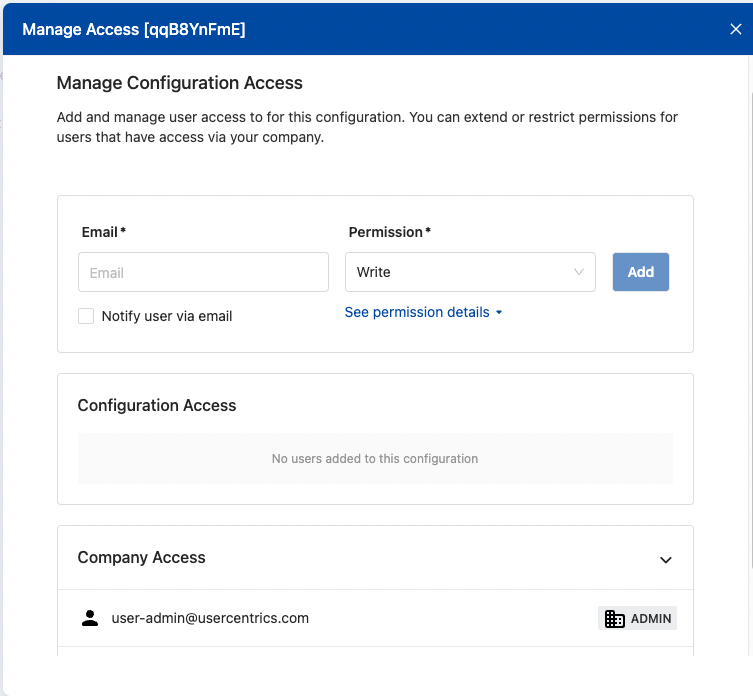
You also have the possibility to assign users access and permissions on configuration level. To do so, go to the Configurations tab in the sidebar, click on the three dots next to the respective configuration and select Manage Access.
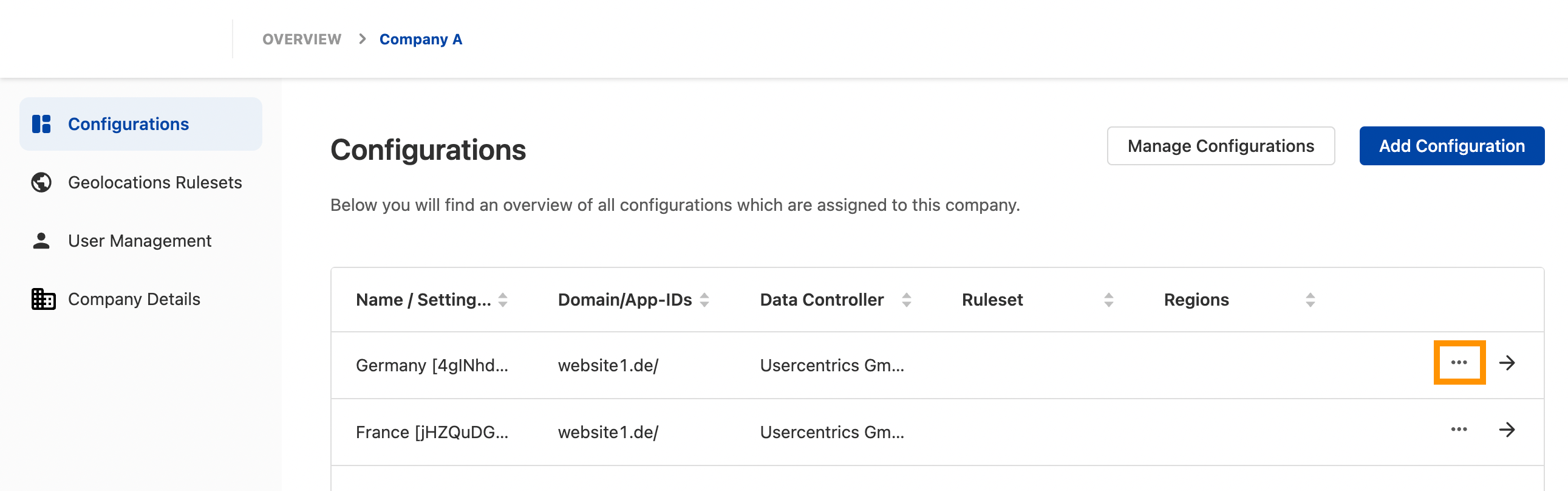
Once clicked a pop-up will open which will allow you to have an overview of all users who have access to this setting and their respective permissions. Here you can also add a new user to the setting or manage permissions for existing users. There are 3 kinds of permissions that can be assigned to a user of the setting:
ADMIN
Manage permissions for the settings
Over-write permissions inherited from the company for a specific user
WRITE
Manage configurations for the setting
READ
View all details of the setting
Note: You can not over-write the permissions of a company admin on configuration (Setting-ID) level. That means if a user is admin of your company, the user will automatically have admin rights for all configurations (Setting-IDs) assigned to the company.
Manage company details
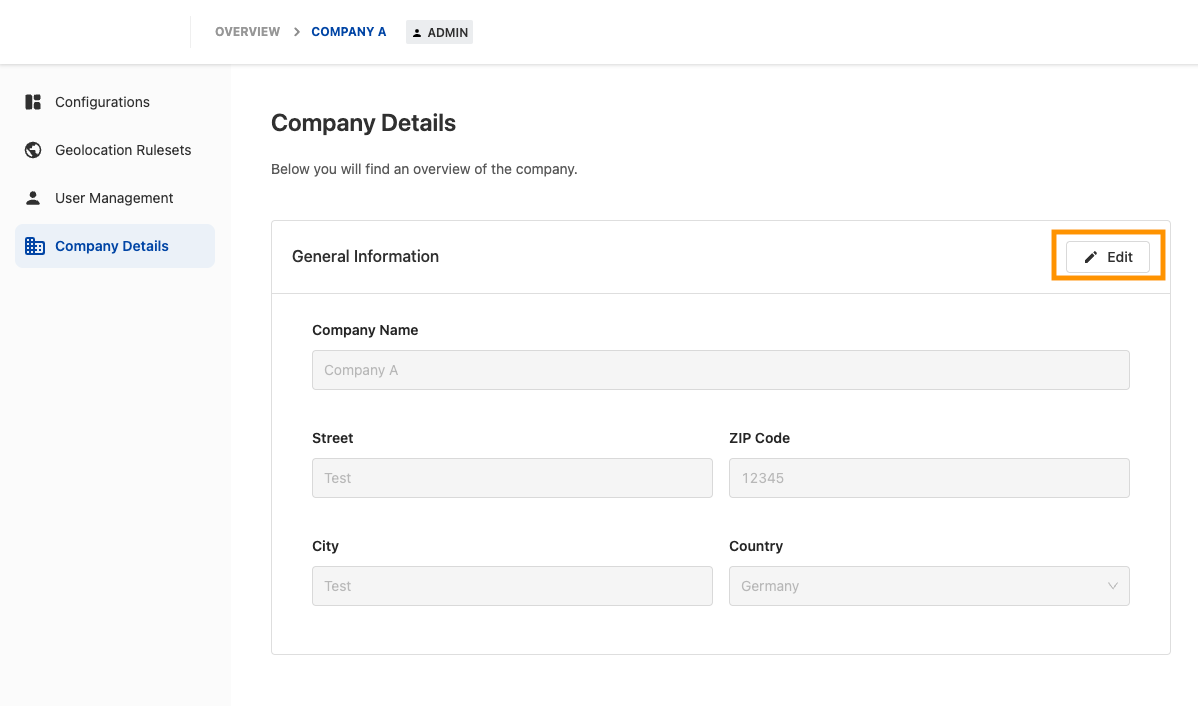
Your company details can be found by clicking Company Details in the sidebar. To edit your company details, please click on the Edit button.
Creating a company
Note: This section is only relevant in case you are able to create additional companies.
To create a company, click Add Company.
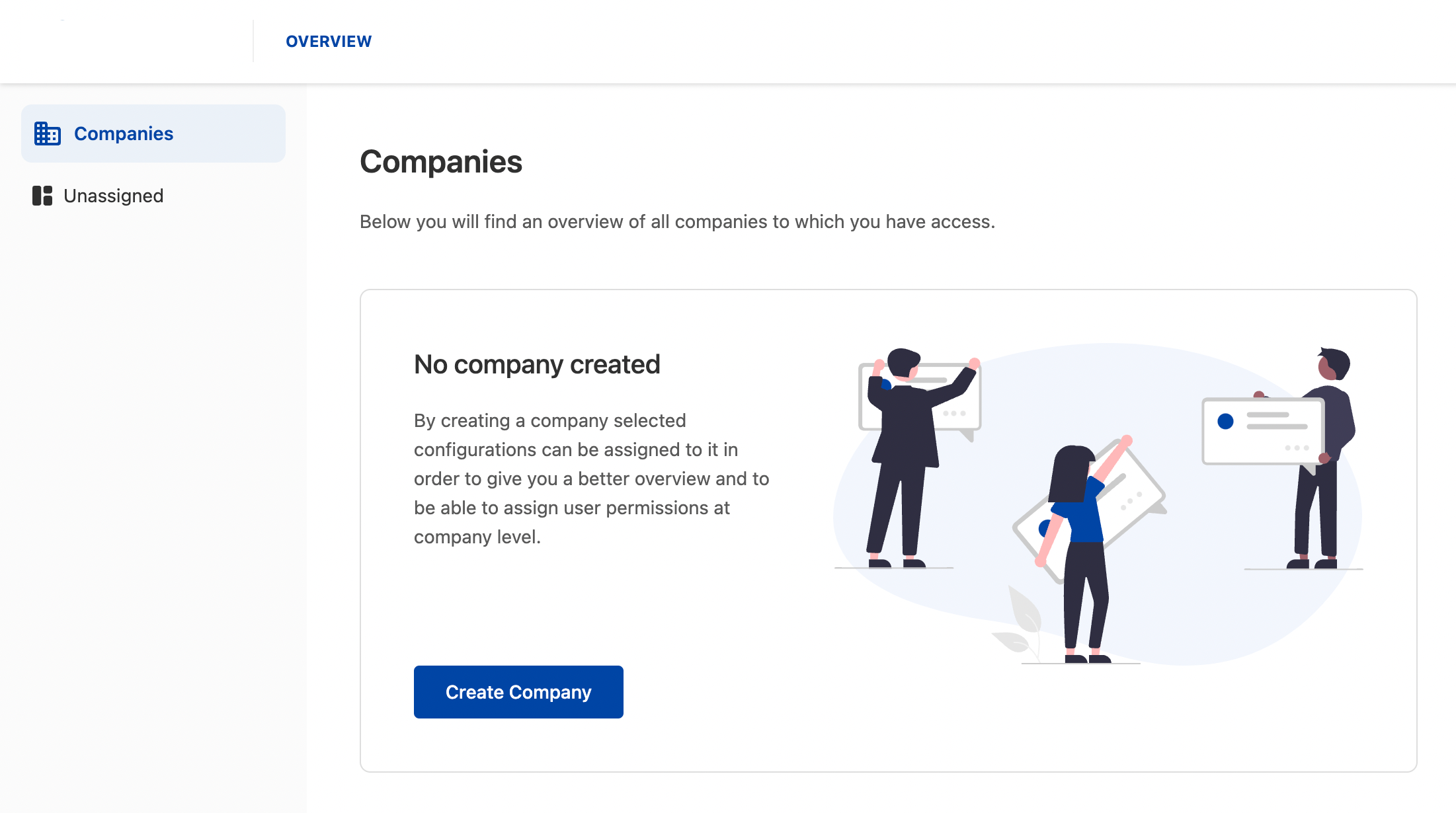
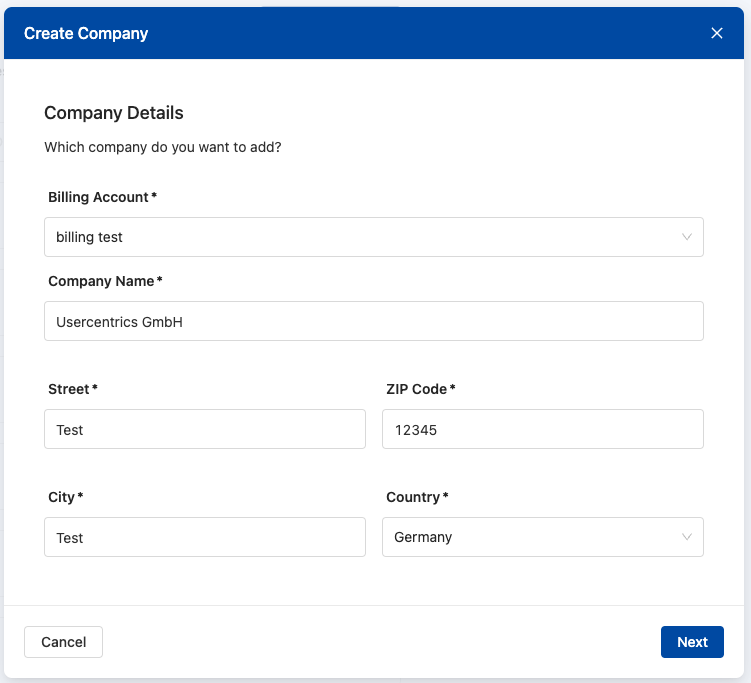
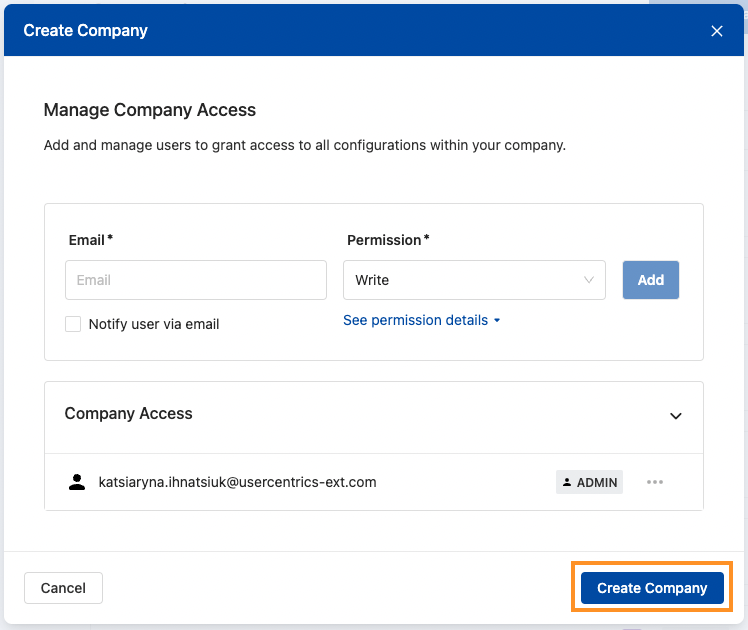
Once you click Create Company, a pop-up wizard will appear which will guide you through the necessary steps:
Fill out the required details for you company.
Add users to give permission to the company. As previously mentioned, there are 3 kinds of permissions that can be assigned to a user of the company:
ADMIN
Create, edit or delete a company.
Add or remove settings from the company.
Manage permissions for the company and settings
Full access to all settings belonging to the company. Permissions for settings can be managed from permission management service whereas all other configurations related to the settings can be done from the setting itself
Note:
The logged-in user who creates the company automatically becomes admin of that company.
You cannot remove admin permission from yourself. This can only be done by another admin.
WRITE
Full access to all settings belonging to the company. Permissions for settings can be managed from permission management service whereas all other configurations related to the settings can be done from the setting itself
READ
View all settings assigned to the company.
To create the new company, click Create Company.
Unassigned configurations (Setting-IDs)
Note: This section is only relevant in case you have unassigned configurations (Setting-IDs).
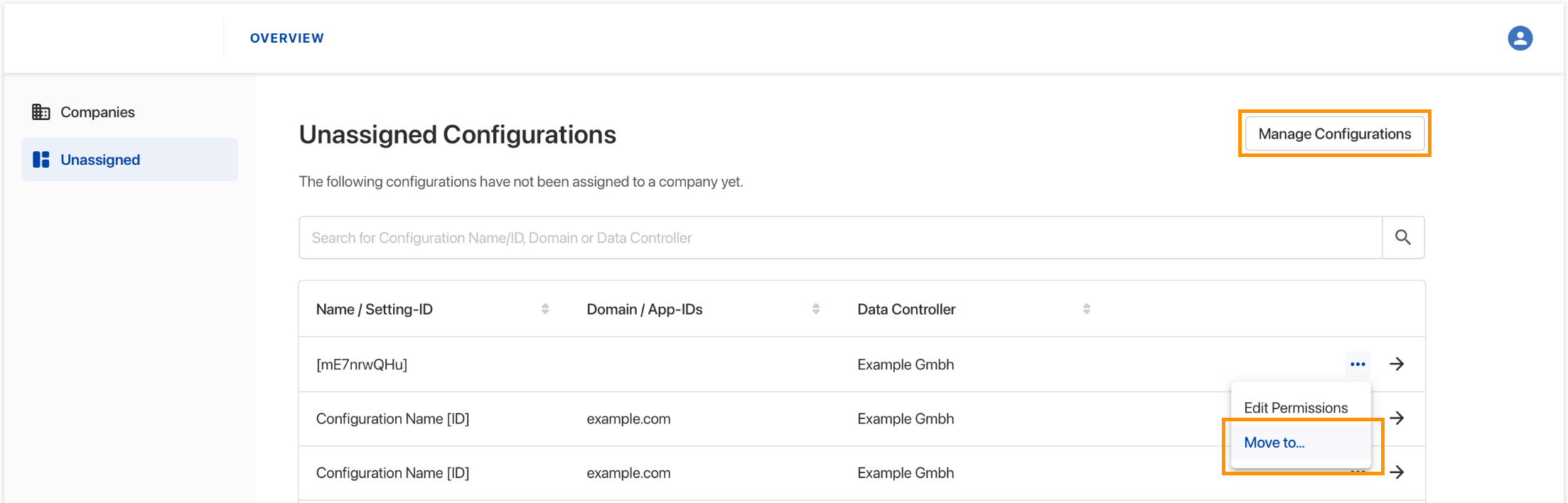
To move a configuration (Setting-ID) to a different company, click on the Manage Configurations button in the top right corner or "Move to..." option in three dots menu.
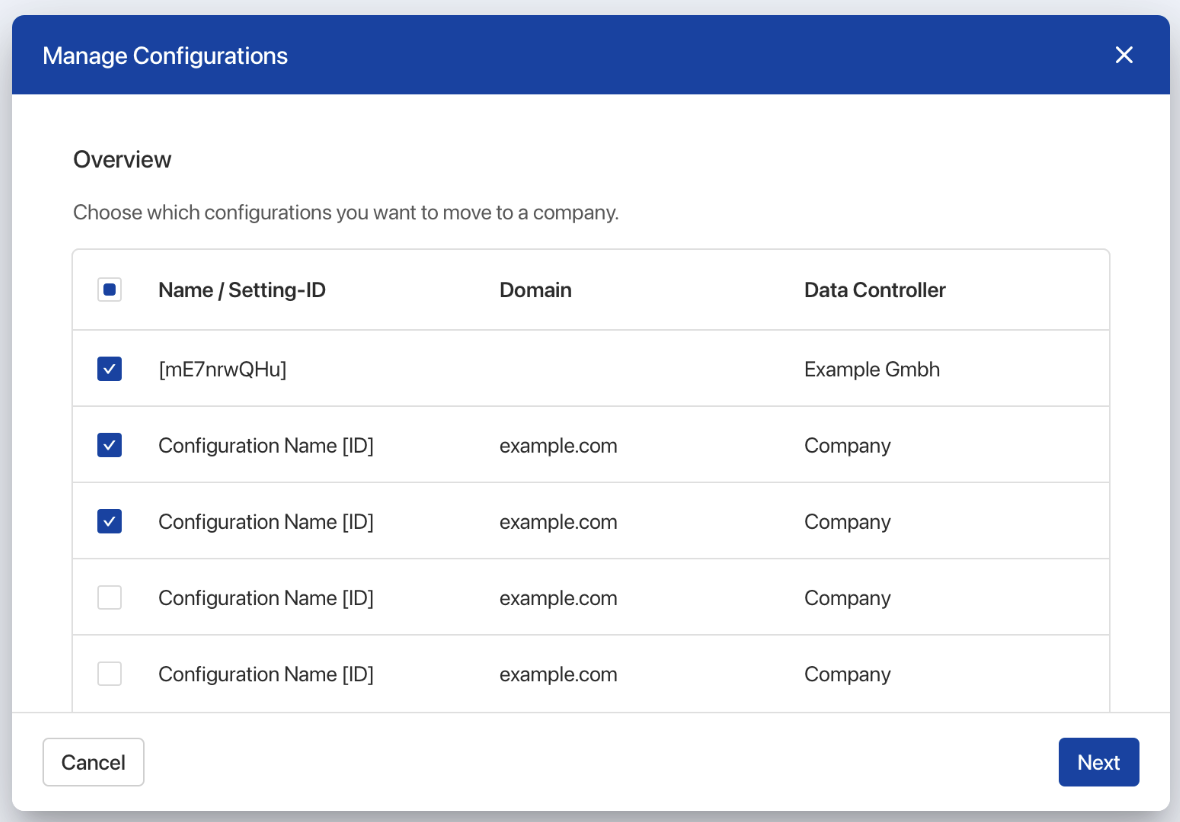
In the appearing popup you are able to select all unassigned configurations (Setting-IDs) you want to move to a company.
Then click next and select a company to which you want to move selected configurations.
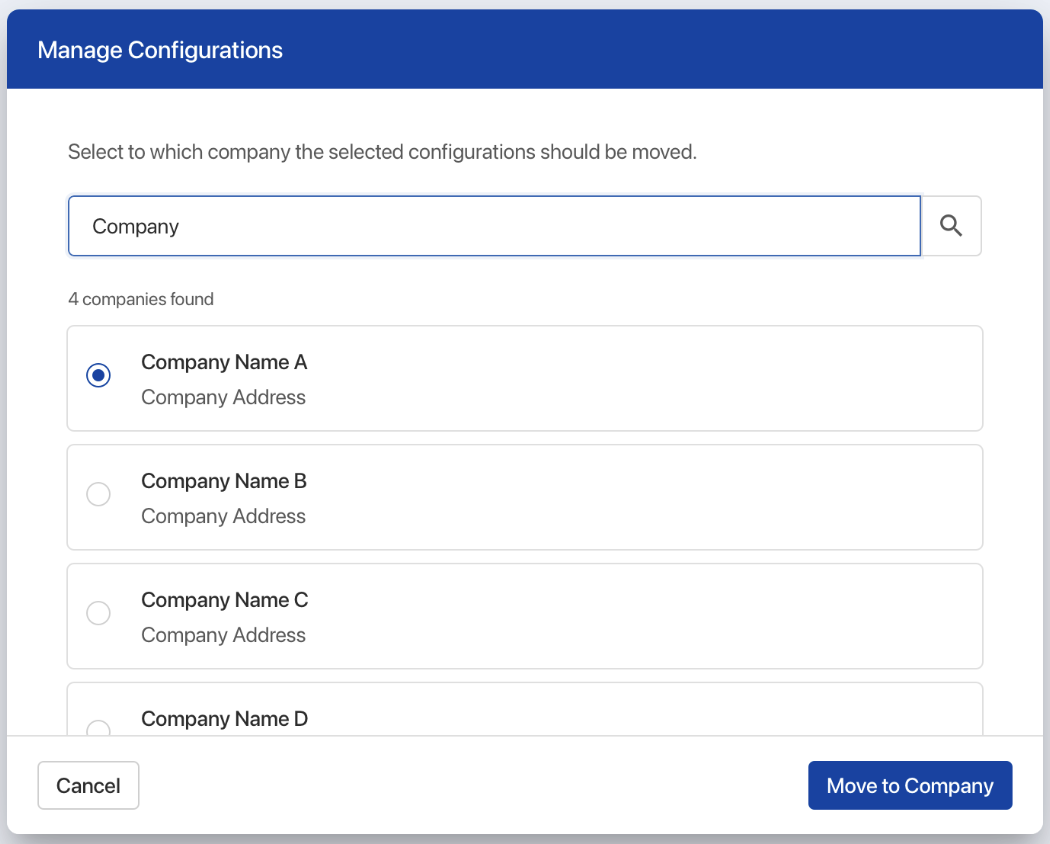
If you have more than 1 company, you can move configurations to another company in a similar way from the Configurations tab.